Message Board

What's your say ??? Send Message Here.
--------------------------------------------------------------
Showing posts with label Tips and Tricks. Show all posts

Saturday, November 10, 2012

Windows 8 keyboard shortcuts 110+

Bookmark and Share


Windows 8 keyboard shortcuts 120+

Hello Tech Friends and Windows users…

Windows 8 comes with many of keyboard shortcuts that can be used to quickly access specific tools or features. Windows 8 comes with no start menu, so you have to be more intelligent to use it efficiently.

My previous e-book Windows Command Guide contains many commands and tips for all the previous versions Windows. Here are the Keyboard commands for you. We hope you will find it useful. These commands will be added to the above e-book, on the latest version


F1: Display Help
F2: Rename a file
F3: Open Search
F4: Display the Address Bar list
F5: Refresh display
F6: Cycle forward through elements in a window or dialog box
F7: Display command history in a Command Prompt
F10: Display hidden Menu Bar
F11: Toggle full screen display
Tab: Cycle forward through elements in a window or dialog box
PrtScn: Take a screen shot of the entire screen and place it in the clipboard
Home: Move to the top of the active window
End: Move to the bottom of the active window
Delete: Delete the selected item
Backspace: Display the previous folder in Windows Explorer Move up one folder level in Open or Save dialog box
Esc
: Close a dialog box
Num Lock Enabled + Plus (+): Display the contents of the selected folder
Num Lock Enabled + Minus (-): Collapse the selected folder
Num Lock Enabled + Asterisk (*): Expand all subfolders under the selected folder
Press Shift 5 times: Turn StickyKeys on or off
Hold down right Shift for 8 seconds: Turn FilterKeys on or off
Hold down Num Lock for 5 seconds: Turn ToggleKeys on or off

Windows key: Switch between Modern Desktop Start screen and the last accessed application
Windows key + C: Access the charms bar
Windows key + Tab: Access the Modern Desktop Taskbar
Windows key + I: Access the Settings charm
Windows key + H: Access the Share charm
Windows key + K: Access the Devices charm
Windows key + Q: Access the Apps Search screen
Windows key + F: Access the Files Search screen
Windows key + W: Access the Settings Search screen
Windows key + P: Access the Second Screen bar
Windows key + Z: Brings up the App Bar when you have a Modern Desktop App running
Windows key + X: Access the Windows Tools Menu
Windows key + O
: Lock screen orientation
Windows key + . : Move the screen split to the right
Windows key + Shift + . : Move the screen split to the left
Windows key + V: View all active Toasts/Notifications
Windows key + Shift + V: View all active Toasts/Notifications in reverse order
Windows key + PrtScn: Takes a screenshot of the screen and automatically saves it in the Pictures folder as Screenshot
Windows key + Enter: Launch Narrator
Windows key + E: Open Computer
Windows key + R: Open the Run dialog box
Windows key + U: Open Ease of Access Center
Windows key + Ctrl + F: Open Find Computers dialog box
Windows key + Pause/Break: Open the System page
Windows key + 1..10: Launch a program pinned on the Taskbar in the position indicated by the number
Windows key + Shift + 1..10: Launch a new instance of a program pinned on the Taskbar in the position indicated by the number
Windows key + Ctrl + 1..10: Access the last active instance of a program pinned on the Taskbar in the position indicated by the number
Windows key + Alt + 1..10: Access the Jump List of a program pinned on the Taskbar in the position indicated by the number
Windows key + B: Select the first item in the Notification Area and then use the arrow keys to cycle through the items Press Enter to open the selected item
Windows key + Ctrl + B: Access the program that is displaying a message in the Notification Area
Windows key + T: Cycle through the items on the Taskbar
Windows key + M: Minimize all windows
Windows key + Shift + M: Restore all minimized windows
Windows key + D: Show/Hide Desktop (minimize/restore all windows)
Windows key + L: Lock computer
Windows key + Up Arrow: Maximize current window
Windows key + Down Arrow: Minimize/restore current window
Windows key + Home: Minimize all but the current window
Windows key + Left Arrow: Tile window on the left side of the screen
Windows key + Right Arrow: Tile window on the right side of the screen
Windows key + Shift + Up Arrow: Extend current window from the top to the bottom of the screen
Windows key + Shift + Left/Right Arrow: Move the current window from one monitor to the next
Windows key + F1: Launch Windows Help and Support

PageUp: Scroll forward on the Modern Desktop Start screen
PageDown: Scroll backward on the Modern Desktop Start screen
Esc
: Close a charm
Ctrl + Esc: Switch between Modern Desktop Start screen and the last accessed application
Ctrl + Mouse scroll wheel: Activate the Semantic Zoom on the Modern Desktop screen

Alt: Display a hidden Menu Bar
Alt + D: Select the Address Bar
Alt + P: Display the Preview Pane in Windows Explorer
Alt + Tab: Cycle forward through open windows
Alt + Shift + Tab: Cycle backward through open windows
Alt + F: Close the current window Open the Shut Down Windows dialog box from the Desktop
Alt + Spacebar: Access the Shortcut menu for current window
Alt + Esc: Cycle between open programs in the order that they were opened
Alt + Enter: Open the Properties dialog box of the selected item
Alt + PrtScn: Take a screen shot of the active Window and place it in the clipboard
Alt + Up Arrow: Move up one folder level in Windows Explorer (Like the Up Arrow in XP)
Alt + Left Arrow: Display the previous folder
Alt + Right Arrow: Display the next folder

Shift + Insert: CD/DVD Load CD/DVD without triggering Autoplay or Autorun
Shift + Delete: Permanently delete the item (rather than sending it to the Recycle Bin)
Shift + F6:
Cycle backward through elements in a window or dialog box
Shift + F10: Access the context menu for the selected item
Shift + Tab: Cycle backward through elements in a window or dialog box
Shift + Click: Select a consecutive group of items
Shift + Click on a Taskbar button: Launch a new instance of a program
Shift + Right-click on a Taskbar button: Access the context menu for the selected item

Ctrl + A: Select all items
Ctrl + C: Copy the selected item
Ctrl + X: Cut the selected item
Ctrl + V: Paste the selected item
Ctrl + D: Delete selected item
Ctrl + Z: Undo an action
Ctrl + Y: Redo an action
Ctrl + N: Open a new window in Windows Explorer
Ctrl + W
: Close current window in Windows Explorer
Ctrl + E: Select the Search box in the upper right corner of a window
Ctrl + Shift + N: Create new folder
Ctrl + Shift + Esc: Open the Windows Task Manager
Ctrl + Alt + Tab: Use arrow keys to cycle through open windows
Ctrl + Alt + Delete: Access the Windows Security screen
Ctrl + Click: Select multiple individual items
Ctrl + Click and drag an item: Copies that item in the same folder
Ctrl + Shift + Click and drag an item: Creates a shortcut for that item in the same folder
Ctrl + Tab: Move forward through tabs
Ctrl + Shift + Tab: Move backward through tabs
Ctrl + Shift + Click on a Taskbar button: Launch a new instance of a program as an Administrator
Ctrl + Click on a grouped Taskbar button: Cycle through the instances of a program in the group
Additions:
WINDOWS TOOLS MENU ITEMS

WIN + X + A Admin Command Prompt
WIN + X + C Command Prompt
WIN + X + D Show/Hide Desktop
WIN + X + E File Explorer
WIN + X + F Programs and Features
WIN + X + G Computer Management
WIN + X + K Disk Management
WIN + X + M Device Manager
WIN + X + O Power Options
WIN + X + P Control Panel
WIN + X + R Run Command
WIN + X + S Search
WIN + X + T Task Manager
WIN + X + V Event Viewer
WIN + X + Y System


WIN = Windows Key


Have a good computing enjoy...

Please send your kind feedback.
@bcdalai2020

Friday, June 1, 2012

50 RUN Commands in Windows 7

Bookmark and Share
Applies To: Windows 7 or later. To check and find more commands info read the e-book: Windows Commands Guide 2016
APPLICATION / TOOL COMMAND
Action Center wscui.cpl
Aero Troubleshooter msdt -id aerodiagnostic
ClearType Text Tuner cttune
Connect to a Projector displayswitch
Desktop Gadget Gallery sidebar /showgadgets
Device Manager hdwwiz.cpl
Device Pairing Application devicepairingwizard
Disk Defragment dfrgui
Display Color Calibration dccw
Display: Desktop Icon Settings control desk.cpl,,0
Display: Personalization control desk.cpl,,2
Display: Screen Resolution control desk.cpl
Display: Screen Resolution control desk.cpl,,3
Display: Screen Resolution control desk.cpl,,4
Display: Screen Resolution desk.cpl
Display: Screen Saver Settings control desk.cpl,,1
Display: Windows Color and Appearance control desk.cpl,,5
Event Translator Config Tool evntwin
Hardware and Devices Troubleshooter msdt -id devicediagnostic
Math Input Panel (for Tablet PC) mip
NAP Client Configuration napclcfg.msc
Pen and Touch (for Tablet PC) tabletpc.cpl
People Near Me collab.cpl
Performance Monitor Reports perfmon /report
Power Options – Energy Report powercfg -energy
Problem Steps Recorder psr
Program Compatibility Troubleshooter msdt -id pcwdiagnostic
Reliability Monitor perfmon /rel
Resource Monitor perfmon /res
Resource Monitor resmon
Restore Files (Advanced) sdclt /foreignrestore
Scan Management scanmanagement.msc
Services For Network File System nfsmgmt.msc
Set Program Access and Computer Defaults computerdefaults
System Preparation Tool sysprep/sysprep
System Property control system
System Repair Disc (create disc) recdisc
User Account Control Settings useraccountcontrolsettings
Windows Licensing Status slmgr.vbs /dli
Windows Anytime Upgrade Results windowsanytimeupgraderesults
Windows Easy Transfer Report migwiz/postmig
Windows Firewall firewall.cpl
Windows Media Center ehome/ehshell
Windows Media Player mplayer2
Windows PowerShell powershell
Windows PowerShell (ISE) powershell_ise
Windows Virtual PC vmwindow
WMI Control Console wmimgmt.msc
XPS Viewer xpsrchvw
Miscellaneous
3D Text Screen Saver sstext3d.scr
Blank Screen Saver scrnsave.scr
Bubbles Screen Saver bubbles.scr
Mystify Screen Saver mystify.scr
Photos Screen Saver photoscreensaver.scr
Ribbons Screen Saver ribbons.scr

To check and find more commands info read the e-book: Windows Commands Guide 2016

RUN Commands in Windows Server 2008 / 2008 R2

Bookmark and Share
Applies To: Windows Server 2008, Server 2008 R2 or later. For more info read the e-book: Windows Commands Guide 2016
APPLICATION / TOOL COMMAND
Security Configuration Wizard scw
Security Configuration Wizard viewer scwviewer
Server Manager compmgmtlauncher
Share and Storage Management storagemgmt.msc
Storage Explorer storexpl.msc
Terminal Service Manager tsadmin.msc
Terminal Services Configuration tsconfig.msc
Windows Firewall with Advanced Security wf.msc
Windows Memory Diagnostic Tool mdsched
Windows Server Backup wbadmin.msc

Find more info, read the e-book: Windows Commands Guide 2016

80 Commands for Windows Vista

Bookmark and Share
APPLICATION / TOOL COMMAND
Add Hardware Wizard hdwwiz
Advanced User Accounts netplwiz
Authorization Manager azman.msc
BitLocker Notifier fvenotify
BitLocker Wizard bitlockerwizard
Color Management colorcpl
Component Services comexp.msc
Computer Management Launcher compmgmtlauncher
Connect to a Network Projector netproj
Credential Backup and Restore Wizard credwiz
Digitizer Calibration Tool tabcal
DPI Scaling (Font size and DPI) dpiscaling
Ease of Access Center (Accessibility) * sethc
Encrypting File System (EFS) rekeywiz
Fax Cover Sheet Editor fxscover
Firewall Control Panel * firewallcontrolpanel
Firewall Settings * firewallsettings
Group Policy Management Console * gpmc.msc
Hibernation: Disable powercfg /h off
Hibernation: Enable powercfg /h on
IIS Manager (IIS 6.0 only) * # inetmgr6
IIS Manager (IIS 7.0) inetmgr
Indexing Options control srchadmin.dll
Language Pack Installer lpksetup
Microsoft iSCSI Initiator iscsicpl
Microsoft Support Diagnostic Tool msdt
Offline Files control cscui.dll
People Near Me p2phost
Presentation Settings (Mobile PC) presentationsettings
Print Management Console printmanagement.msc
Printer Migration printbrmui
Problem Reports and Solutions * # wercon
Programs and Features appwiz.cpl
Security Configuration Management secpol.msc
Snipping Tool snippingtool
Sound Recorder soundrecorder
Sound Volume sndvol
Sticky Notes stikynot
Sync Center mobsync
Tablet PC Input Panel tabtip
Task Scheduler taskschd.msc
Trusted Platform Module (TPM) tpm.msc
Trusted Platform Module (TPM) tpminit
Windows Activation Client slui
Windows Backup and Restore sdclt
Windows Calendar * wincal
Windows DVD Maker dvdmaker
Windows Easy Transfer (WET) migwiz
Windows Fax and Scan wfs
Windows Features optionalfeatures
Windows Journal journal
Windows Mail * winmail
Windows Mobility Center (Mobile PC) mblctr
Windows Remote Assistance msra
Windows Sidebar # sidebar
Windows Update Application Launcher wuapp
ADDENDA
Appearance Settings control desk.cpl,appearance@appearance
Color Scheme control /name microsoft.personalization /page pagecolorization
Desktop background control /name microsoft.personalization /page pagewallpaper
Display Settings (Screen Resolution) control desk.cpl,settings@settings
Folder Options: File extension associations control /name microsoft.defaultprograms /page pagefileassoc
Folder Options: Folder searching rundll32 shell32.dll,options_rundll 2
Folder Options: General rundll32 shell32.dll,options_rundll 0
Folder Options: View rundll32 shell32.dll,options_rundll 7
Multi-monitor control desk.cpl,monitor,@monitor
Power Options: Advanced Settings page control powercfg.cpl,,3
Power Options: Create a power plan control /name microsoft.poweroptions /page pagecreatenewplan
Power Options: Edit current plan settings control /name microsoft.poweroptions /page pageplansettings
Power Options: System settings control /name microsoft.poweroptions /page pageglobalsettings
Regional and Language Options: Administrative control /name microsoft.regionalandlanguageoptions /page /p:”administrative”
Regional and Language Options: Keyboard control /name microsoft.regionalandlanguageoptions /page /p:”keyboard”
Regional and Language Options: Location control /name microsoft.regionalandlanguageoptions /page /p:”location”
Screensaver control desk.cpl,screensaver,@screensaver
Themes control desk.cpl,themes,@themes
[“Advanced System Property” with a specific tab]
TAB COMMAND
Advanced System Settings systempropertiesadvanced
Computer Performance Settings systempropertiesperformance
Computer Name systempropertiescomputername
Data Execution Prevention Settings systempropertiesdataexecutionprevention
Hardware Settings systempropertieshardware
System Protection Settings systempropertiesprotection
System Remote Settings systempropertiesremote

For more info read the e-book: Windows Command Guide 2016

180 Windows XP RUN commands

Bookmark and Share
180 run commands for you. check it and comments. Reply if you know more to it….
APPLICATION / TOOL COMMAND
Accessibility Controls access.cpl
Accessibility Wizard accwiz
Add Hardware Wizard hdwwiz.cpl
Add/Remove Programs appwiz.cpl
Administrative Tools control admintools
Automatic Updates wuaucpl.cpl
Bluetooth Transfer Wizard fsquirt
Calculator calc
Certificate Manager Console certmgr.msc
Character Map charmap
Clipboard Viewer clipbrd
Command Prompt cmd
Component Services (DCOM/COM+ settings) dcomcnfg
Computer Management Console compmgmt.msc
Control Panel control
Date and Time Properties control date/time
Date and Time Properties timedate.cpl
DDE Shares ddeshare
Device Manager Console devmgmt.msc
DirectX Diagnostic Tool dxdiag
Disk Cleanup Utility (Appendix-A2) cleanmgr
Disk Defragment Console dfrg.msc
Disk Management Console diskmgmt.msc
Display Properties control desktop
Display Properties desk.cpl
Display Properties (Appearance tab pre-selected) control color
Dr. Watson System Troubleshooting Utility (16-bit) drwatson
Dr. Watson System Troubleshooting Utility (32-bit) drwtsn32
Driver Verifier Utility verifier
DVD Placeholder Utility (playing DVD in WMP) dvdplay
Event Viewer eventvwr
Event Viewer eventvwr.msc
File Signature Verification Tool sigverif
Files and Setting Transfer Wizard migwiz
Folders Properties control folders
Fonts Folder control fonts
Fonts Folder fonts
Game Controllers joy.cpl
Game: Free Cell freecell
Game: Hearts Card Game mshearts
Game: Internet Backgammon bckgzm
Game: Internet Checkers chkrzm
Game: Internet Hearts hrtzzm
Game: Internet Reversi rvsezm
Game: Internet Spades shvlzm
Game: Minesweeper winmine
Game: Pinball pinball
Game: Solitaire sol
Game: Spider Solitaire spider
Group Policy Object Editor gpedit.msc
Help and Support Center helpctr
HyperTerminal hypertrm
Iexpress Wizard (packaging tool) iexpress
Indexing Service Console ciadv.msc
Infrared Monitor (if installed) control infrared
Internet Connection Wizard icwconn1
Internet Explorer iexplore
Internet Explorer (InPrivate Mode) (IE8 or later) iexplore –private
Internet Explorer (no Add-ons) iexplore –extoff
Internet Properties inetcpl.cpl
Internet Setup Wizard inetwiz
Keyboard Properties control keyboard
Local Security Settings Console secpol.msc
Local Users and Groups Console lusrmgr.msc
Log Off logoff
Mail client (Default) mailto:
Mail configurations (Microsoft Outlook settings) control mlcfg32.cpl
Microsoft Chat winchat
Microsoft Management Console (Appendix-A13) mmc
Microsoft Media Player (audio player) mplay32
Microsoft Movie Maker moviemk
Microsoft Narrator narrator
Microsoft Paint mspaint
Microsoft Paint pbrush
Microsoft Program Manager progman
Microsoft Synchronization Manager mobsync
Mouse Properties control mouse
Mouse Properties main.cpl
MS-DOS Editor (text editor for MS-DOS) edit
Network Access Protection (NAP) Client UI napstat
Network Connections control netconnections
Network Connections ncpa.cpl
Network Setup Wizard (also Wireless) netsetup.cpl
Notepad notepad
Novell NetWare (if installed) control netware
Object Packager packager
On-Screen Keyboard osk
Outlook Express msimn
Performance Monitor perfmon
Performance Monitor perfmon.msc
Phone and Modem Options control telephony
Phone and Modem Options telephon.cpl
Phone Dialer dialer
Power Configuration powercfg.cpl
Printers and Faxes control printers
Printers Folder printers
Private Character Editor eudcedit
Regional and Language Options control international
Regional and Language Options intl.cpl
Registry Editor regedit
Registry Editor regedt32
Remote Access Phonebook rasphone
Remote Assistance rcimlby –launchra
Remote Desktop Connection mstsc
Removable Storage Console ntmsmgr.msc
Removable Storage Operator Requests ntmsoprq.msc
Resultant Set of Policy (RSOP) rsop.msc
Scanners and Cameras sticpl.cpl
Scheduled Tasks control schedtasks
Security Center wscui.cpl
Services services.msc
Shared Folder Wizard (creating shared folder) shrpubw
Shared Folders fsmgmt.msc
Shutdown Windows (Appendix-A3) shutdown –s –t 00
Sound Recorder sndrec32
Sounds and Audio mmsys.cpl
SQL Client Configuration cliconfg
System Configuration Editor sysedit
System Configuration Utility msconfig
System Information msinfo32
System Information winmsd
System Properties sysdm.cpl
System Restore restore/rstrui
Task Manager taskmgr
Telnet Client telnet
Telnet Server Admin tlntadmn
User Accounts (Local Users and Groups) control userpasswords
User Accounts 2 (Advanced) control userpasswords2
User Accounts Management nusrmgr.cpl
Utility Manager utilman
Windows Address Book wab
Windows Address Book Import Utility wabmig
Windows Backup Utility ntbackup
Windows Diagnose winmsd
Windows Explorer explorer
Windows Firewall firewall.cpl
Windows Installer (version checking) msiexec
Windows Magnifier magnify
Windows Management Infrastructure (WMI) wmimgmt.msc
Windows Media Player (WMP) wmplayer
Windows Media Player 6.4.09 (old version) mplayer2
Windows Messenger msmsgs
Windows NetMeeting conf
Windows Picture Acquisition Wizard (needs camera) wiaacmgr
Windows Product Activation (WPA) status oobe/msoobe /a
Windows System Security Tool syskey
Windows Update Launches (online update) wupdmgr
Windows Version Information winver
Windows WordPad wordpad
Windows Write write
Windows XP Registration Wizard (online) regwiz /r
Windows XP Tour Wizard tourstart
ADDENDA
[“System Property” with a specific tab]
TAB COMMAND
General control sysdm.cpl,,0
Computer Name control sysdm.cpl,,1
Hardware control sysdm.cpl,,2
Advanced control sysdm.cpl,,3
System Restore control sysdm.cpl,,4
Automatic Updates control sysdm.cpl,,5
Remote control sysdm.cpl,,6
[“Add or Remove Programs” with a specific tab]
Change or Remove Programs: control appwiz.cpl
Change or Remove Programs: control appwiz.cpl,,0
Add new Programs (from CD-ROM/Floppy) control appwiz.cpl,,1
Add/Remove Windows Components control appwiz.cpl,,2
Set Program Access and Defaults control appwiz.cpl,,3
[“Sound and Audio Device” with a specific tab]
Volume control mmsys.cpl,,0
Sounds control mmsys.cpl,,1
Audio control mmsys.cpl,,2
Voice control mmsys.cpl,,3
Hardware control mmsys.cpl,,4
[“Desktop Property” with a specific tab]
Desktop Property: Themes control desk.cpl
Desktop Property: Desktop control desk.cpl,,0
Desktop Property: Screen Saver control desk.cpl,,1
Desktop Property: Appearance control desk.cpl,,2
Desktop Property: Settings control desk.cpl,,3
[“System File Checker” (sfc.exe) utility usage]
System File Checker (Purge File Cache) sfc /purgecache
System File Checker (Return to Default Setting) sfc /revert
System File Checker (Scan immediately) sfc /scannow
System File Checker (Scan On every boot) sfc /scanboot
System File Checker (Scan Once at next boot) sfc /scanonce
System File Checker (Set cache size to x in MB) sfc /cachesize=x

For more info read the e-book: Windows Command Guide 2016

Saturday, February 5, 2011

Creating custom RUN Command for your Favorite Apps

Bookmark and Share
Creating custom RUN Command for your Favorite Apps

This tricks help you to create custom Run commands for your favorite applications or software. so that you can run that app from RUN.

Here are the steps for doing this:
  1. Open Registry Editor (from Start Menu > RUN and type regedit then press Enter):

    Go to the location:

    HKEY_LOCAL_MACHINE\SOFTWARE\Microsoft\Windows\CurrentVersion\App Paths\

  2. Create a new Key and name it as per exact executable file name of your app (example

    “windbg.exe" file for "Debugging Tools for Windows (x86)"). Remember to add .exe in the

    key name. The key name must be same as the app's executable name to avoid confusion.

  3. Then in the right pane change the value of the default string value named as "Default", to

    the address of the app's installation folder. The app's address must be direct and not be

    with environment variables. Example: C:\Program Files\Debugging Tools for Windows

    (x86)\windbg.exe

  4. And create another new string named “Path” and changed the value to the location of the

    app. Example: C:\Program Files\Debugging Tools for Windows (x86)\

  5. Then close registry editor and issue the command in the RUN. These commands may not

    be executed from Command Prompt.
Screenshot:
CustomCommands

This command is included in the tips and tricks section of the eBook Windows Command Guide. Also you can download this eBook from here: http://1drv.ms/1mDyZC9. Commands for the third-party apps can be found in the APPENDIX-A14 of this eBook.

Applies To: All version of Microsoft Windows, specifically from Windows XP or higher. May work on previous version.

bcdalai
@bcdalai2020

Saturday, August 14, 2010

The computer screen dims after resume from Hibernation

Bookmark and Share

The computer screen dims after resume from hibernation in Windows 7


This problem is related to Hibernation on Windows 7 PC and Laptops.
Customers running the Windows 7 client have reported issues in which they are unable to resume activity after their computer goes into hibernation.

According to Microsoft in some cases, the computer screen will dim after the users log on to resume from hibernation.

This issue is related specifically to Windows 7 and may be on Windows Server 2008 R2. Source: KB982635.

Condition of the issue:
  • You have a computer that is running Windows 7.
  • You configure the power button to be used for hibernation on the computer.
  • You change the setting of the Password protection on wake up setting to the Require a password (recommended) option.
  • The computer is put into hibernation.
  • You press the power button to resume the computer from hibernation. You are prompted to enter your user account credentials.
  • The computer is put into hibernation again while you try to log on to the computer.
  • For example, the computer is put into hibernation because of low power or because the power button is pressed by mistake.
  • You press the power button to resume the computer from hibernation again.
In this situation, the computer screen dims after you log on to resume from hibernation.

Cause: This issue occurs because two threads try to fade out the monitor at the same time.

Workaround: For Windows 7 and for Windows Server 2008 R2
To work around this issue, log on and then log off the computer.

Resolution:
Hotfix download available for only for Windows 7 (x86).

Request for hotfix HERE. Or Download it here.

Thursday, August 5, 2010

Enable or Disable Windows Update Auto Restart

Bookmark and Share

Stop and Disable Windows Update Auto Restart or Reboot

Auto-Restart dialog box

After downloading and installing an update from Windows Update, a window constantly pops up nagging you to restart, and even counting down to an automatic restart.
In Windows 7, Windows Vista and Windows XP, after installing downloaded updates via Windows Update manually or scheduled Automatic Updates automatically, the system will ask to auto-restart to apply all the updates.

Windows 7 has the option to allow users to postpone or delay the restart, the computer will still automatically reboot sometime later, if the updates required reboot to complete the installation.
If the system is has running an important task and cannot be restarted right now then you may stop rebooting after the updates are installed. You can change this feature of Auto-restart/Auto-reboot in group policy so that you will not be interrupted while working.

Click image to enlarge


Local Group Policy Editor

Here are the procedure to enable / disable the auto-restart feature:
Group Policy setting:
  1. Click Start -> Run
  2. Enter “gpedit.msc
  3. Go to Local Computer Policy -> Computer Configuration -> Administrative Templates –> Windows Components -> Windows Update
  4. Double-click on “No auto-restart for scheduled Automatic Update installation
  5. Disable or Enable it.
  6. Reboot the computer.
Click image to enlarge
No auto-restart for scheduled Automatic Update installation

You can also change the default setting of “Re-prompt for restart with scheduled installations” to remind you once a day, or so if you can still stand these pop-ups.

Photobucket
Re-prompt for restart with scheduled installations

Registry Editor setting:
This setting can be changed through registry with the following registry key and value.
  1. Run Registry Editor (RegEdit). Type regedit in RUN box from start menu.
  2. Go to Navigate to the following registry key: HKEY_LOCAL_MACHINE\Software\Policies\Microsoft\Windows\WindowsUpdate\AU
  3. Change the NoAutoRebootWithLoggedOnUsers (If the key does not exist, create new one with this name) DWORD (32-bit) Value to 1 to disallow auto-reboot. By default, the value is 0 which allow auto-reboot.
  4. Close registry editor.
When the policy is enabled, Automatic Updates will wait for the computer to be restarted by any user who is logged on, and not restart automatically. And Windows will not notify users that a restart is required to apply the updates.

Note:
This article is applicable for: Windows XP, Windows Server 2003, Vista, Server 2008,  Windows 7,  Server 2008 R2 and later.
References:
http://support.microsoft.com/kb/328010

Friday, July 30, 2010

Windows 7 XP Mode Limits Media Player Functionality

Bookmark and Share

Windows 7 XP Mode Limits Windows Media Player Functionality

Article Source: news.softpedia.com. By Marius Oiaga, Technology News Editor, @MariusOiaga
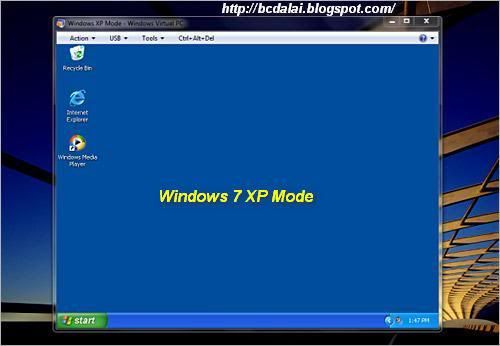
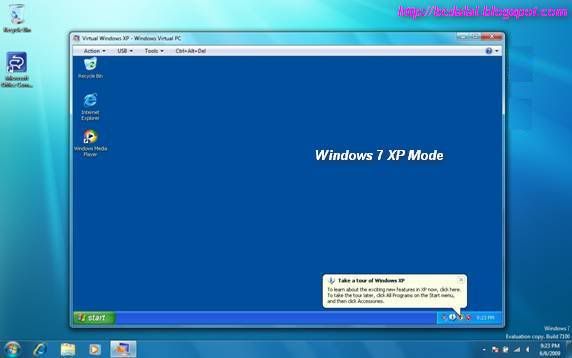
 Windows 7 XP Mode

When it revealed that it was going to deliver a free and activated copy of Windows XP Service Pack 3 (SP3) for select editions of Windows 7, Microsoft also indicated that the virtualized version of the operating system releases in 2001 comes with a few shortcomings. Windows XP Mode in Windows 7 cannot be used in gaming scenarios, for example. This week, the Redmond company described further limitations for the free but virtualized copy of XP delivered to customers running the Professional, Enterprise and Ultimate SKUs.


It appears that Windows Media Player functionality is limited in Windows 7 XP Mode. In fact, according to the software giant, users will not be able to leverage the Windows Media Player inside Windows 7 XP Mode in the same manner as they do on Windows 7.
“When you maximize or minimize the Windows Media Player window while playing contents on Windows 7 running Windows XP Mode, you may receive an "unexpected network error occurred" error message, which causes Windows Media Player to stop playing,” Microsoft stated.

Microsoft explained that there is no bug behind this problem, and that quite to the contrary, this was the normal, intended behavior from the get go. “This behavior is by design,” the company explained. Of course, in the context in which Windows 7 XP Mode was designed with the limitations noted above, customers that have stumbled across this issue should not expect Microsoft to fix it.

And while there won’t be an update or a hotfix enabling the full functionality of Windows Media Player inside Windows 7 XP Mode, customers won’t even be able to deploy a manual fix. “There is no workaround for it,” the software giant underlined. In this context, customers taking advantage of Windows 7 XP Mode should avoid running Windows Media Player, and the frustration that will come with not being able to take advantage of basic functionality such as minimize and maximize.


References:
Update for Windows 7 (KB977206)
Update for Windows 7 for x64-based Systems (KB977206)
Windows XP Mode RTM and Windows Virtual PC RTM are available for download here.
Collection: bcdalai

What's your say ??? Send Reply


Friday, July 2, 2010

List your favorite softwares and tools here

Bookmark and Share
What's your say ???
List your favorite softwares and tools here

Tell me about your favorite softwares and tools

Hello Bloggers and Compter users, Here I'm asking you all about the favorite software and tools you like in for your PC / Laptop / Server.

Tell me in this article through the comment form or by email: [bcdalai2020[at]gmail[dot]com]


Whatever the program may be anything like (example):

Operating Systems, Anti-Spyware, Anti-Virus/Firewall, System Tools, Cleaner Tools, Drivers, Internet Tools, Firewalls, Graphics & Design, MultiMedia, Desktop, CD/DVD Tools, Office/Business, File Tools, Programming, PDF, PHOTO Tools, VIDEO Tools, MP3 & AUDIO, Convertes, Backup/Recovery, Utilities Tools, Networking, And Other Tools. 


Tell me about your favorite softwares and tools

Special Notes:
Based on your feedback - When you are telling your likes and dislikes, then I'll review that particular apps on this blog. If any problem or issue discovered then, I'll analyze and troubleshoot here.


So come on and talk to me.


So, What's your say ???


--------------------------
Kindle Wireless Reading Device, Free 3G, 6" Display, White, 3G Works Globally - Latest Generation

Friday, June 25, 2010

How to delete Gmail account

Bookmark and Share

How to delete Gmail account

Introduction: Gmail is a free, advertising-supported webmail, POP3, and IMAP service provided by Google. Gmail was launched as an invitation-only beta release on April 1, 2004 and it became available to the general public on February 7, 2007, though still in beta status at that time. As of December 2009 it has 176 million users monthly. The service was upgraded from beta status on July 7, 2009.

With an initial storage capacity offer of 1 GB per user, Gmail significantly increased the webmail standard for free storage from the 2 to 4 MB its competitors offered at that time. Gmail has a search-oriented interface and a "conversation view" similar to an Internet forum.

Features on Free version

1 - Storage: Gmail's log-in page (July 2009) The Gmail service currently provides more than 7450 MB of free storage.

2 - Gmail Labs: The Gmail Labs feature, introduced on June 5, 2008, allows users to test new or experimental features of Gmail, such as bookmarking of important e-mail messages, custom keyboard-shortcuts and games and many more.

3 - Spam filter: Gmail's spam filtering features a community-driven system: when any user marks an email as spam, this provides information to help the system identify similar future messages for all Gmail users. Users may tune the system to allow mail marked as spam to be handled in particular ways.

4 - Gmail Mobile: Gmail Mobile is a version of Google's Gmail email service. It is a free service, developed to provide access to Gmail from mobile devices such as cell phones, or smartphones.

5 - Gmail on iPad: On April 3, 2010, Google announced a new two-pane layout designed specifically for the iPad.

6 - Google Buzz: On February 9, 2010, Google commenced their new service, Google Buzz, which integrates with Gmail allowing users to share links and media, as well as status updates. Gmail allowing users to share links and media, as well as status updates.

Information courtesy: Wikipedia

Deleting Gmail account

Gmail email id is automatically deactivated and deleted if you will not use the account more than 9 months or 270 days.

But if you want to delete the account manually then you can do so.

Steps in deleting Gmail account:

1- Log on to http://mail.google.com/, then go to settings. (see Screenshot –1)

2- Click the link “Google Account Settings”. (see Screenshot –2)

OR

3- Directly logon to: https://www.google.com/accounts/ManageAccount?service=mail&hl=en

4- Then click Edit right to My Product section (see Screenshot –3).

5- Next Click “Close account and delete all services and info associated with it” link below Delete Account. (see Screenshot –4)

6- Next follow the steps on screen. (see Screenshot –5) Provide the password again.

7- Then click the button “Delete Google Account.”

8- And now the account is deleted. (see Screenshot -6)

9- Finish.

Screenshots:

click to enlarge image

Screenshot -1

click to enlarge image

Screenshot -2

click to enlarge image

Screenshot -3

click to enlarge image

Screenshot -4

click to enlarge image

Screenshot -5

click to enlarge image

Screenshot –4

Finish. Now the your account is deleted.

How to delete Yahoo! Mail account

Bookmark and Share

How to delete Yahoo! Mail account

Introduction: Yahoo! Mail (shortened to Y! Mail) is a free web mail service provided by Yahoo!. It was inaugurated in 1997. It is currently the largest web-based email service.
Currently, Yahoo! offers two versions of Yahoo! Mail: an Outlook-like Ajax interface, as well as the traditional full-page-scroll "Yahoo! Mail Classic," which continues the availability of the simpler. In early 2008, Yahoo! started offering unlimited mail storage even to its users, in response to heated competition in the free-web mail market segment.

Features on Free version:
- Unlimited Mail Storage.
- 25 MB attachments
- 100 filters to automatically sort incoming messages (200 filters for the Plus version)
Protection against spam and viruses.
- Advertising is displayed on the screen while working with the e-mail account, but text ads are not within the emails themselves, and they are no longer added to the footer of outgoing messages.
- POP3 support, Mail Forwarding facility, and SMTP support in some countries (but not in the US).
- Accounts not logged into for four months get deactivated (The account can be retrieved but all stored data, such as emails, are lost).
- Early in 2006, Yahoo! Mail introduced aliases to its repertoire of features. Users could now add a (single) alias username containing a dot character for a pre-existing account.
- The Chinese version of Yahoo! Mail offers 3.5 GB quota and 20 MB attachments.
- Some users get features added if they are long time users.
- Latest beta of Yahoo! Zimbra desktop allows for all Yahoo! users to use the software.

Information courtesy: Wikipedia

Delete A Yahoo account

Yahoo email id is automatically deactivated and deleted if you will not use the account more than 4 months or 120 days. But if you want to delete the account manually then you can do so.

Steps in deleting Yahoo account:

1- Log on to this page: https://edit.yahoo.com/config/delete_user

2- This is the link for deleting yahoo address permanently. Provide the user name and password. Your account will be deleted within 90 days.

3- Then follow the steps on screen.

4- Provide the password again and the code in the image.

5- Then click the button “Terminate this Account.”

6- Finish.

Note: Yahoo Rules mention this point: In most cases your account will be deactivated and then deleted from our user registration database in approximately 90 days. This delay is necessary to discourage users from engaging in fraudulent activity. Additionally, due to the limited number of names available, we may allow other users to sign up for and use your current Yahoo! ID and profile names after your account has been deleted.'

Screenshots:

 click to enlarge image

Image-1: ( part 1 of part 2)

click to enlarge image

Image-1: ( part 2 of part 2)

 click to enlarge image

Image–2 (Final)

Now Your Yahoo account is deleted.

Finish.