Message Board

What's your say ??? Send Message Here.
--------------------------------------------------------------
Showing posts with label Windows 7. Show all posts

Tuesday, May 14, 2013

Why Windows Kernel Slower is Than Other OS – Anonymous Microsoft Dev Says

Bookmark and Share

Why Windows Kernel Slower is Than Other OS – An Anonymous Microsoft Dev Says

Hello Friends,

Do you ask a common questions all the time that Why Windows is slow ? or Why my PC is slowing down after some days even if there is very minimum apps or file in my PC ? This is the regular case whether you use Laptop, Desktop or High end / High configuration Computer.

Yes this is the common question, that everyone asks on computing. As a IT Pro We face this question daily, and a major headache and challenge in the profession. But there is no specific answers from any IT Pro or from Microsoft. The answer may be many or may be one ? But what is the real/true reason behind it is still unknown and to be found out. There are many discussions on the internet and on offline. Few days ago there was a long discussion on CNET (Why do all Window systems slow down over time?). But have may reasons at last.

The Design and Development of the Windows OS is questionable many a times, in this scenario. Comparing to other OS, it is true that Windows is Slower than other (Linux, Mac etc.) in many cases.

Here is the recent post by an anonymous Microsoft developer, describing the causes of the issue from the development point of view.

The post was 1st published on (Microsoft dev explained in a comment) Hacker News, (then deleted, and reposted on Zorinaq.com). Just read through it to know more, why Windows “is indeed slower than other operating systems in many scenarios, and the gap is worsening”.

SlowerWindows

--------------------Read the Full post below-------------------------------

"I Contribute to the Windows Kernel. We Are Slower Than Other Operating Systems. Here Is Why."

I was explaining on Hacker News why Windows fell behind Linux in terms of operating system kernel performance and innovation. And out of nowhere an anonymous Microsoft developer who contributes to the Windows NT kernel wrote a fantastic and honest response acknowledging this problem and explaining its cause. His post has been deleted! Why the censorship? I am reposting it here. This is too insightful to be lost. [Edit: The anonymous poster himself deleted his post as he thought it was too cruel and did not help make his point, which is about the social dynamics of spontaneous contribution. However he let me know he does not mind the repost at the condition I redact the SHA1 hash info, which I did.] [Edit: A second statement, apologetic, has been made by the anonymous person. See update at the bottom.]

"""

I'm a developer in Windows and contribute to the NT kernel. (Proof: the SHA1 hash of revision #102 of [Edit: filename redacted] is [Edit: hash redacted].) I'm posting through Tor for obvious reasons.

Windows is indeed slower than other operating systems in many scenarios, and the gap is worsening. The cause of the problem is social. There's almost none of the improvement for its own sake, for the sake of glory, that you see in the Linux world.

Granted, occasionally one sees naive people try to make things better. These people almost always fail. We can and do improve performance for specific scenarios that people with the ability to allocate resources believe impact business goals, but this work is Sisyphean. There's no formal or informal program of systemic performance improvement. We started caring about security because pre-SP3 Windows XP was an existential threat to the business. Our low performance is not an existential threat to the business.

See, component owners are generally openly hostile to outside patches: if you're a dev, accepting an outside patch makes your lead angry (due to the need to maintain this patch and to justify in in shiproom the unplanned design change), makes test angry (because test is on the hook for making sure the change doesn't break anything, and you just made work for them), and PM is angry (due to the schedule implications of code churn). There's just no incentive to accept changes from outside your own team. You can always find a reason to say "no", and you have very little incentive to say "yes".

There's also little incentive to create changes in the first place. On linux-kernel, if you improve the performance of directory traversal by a consistent 5%, you're praised and thanked. Here, if you do that and you're not on the object manager team, then even if you do get your code past the Ob owners and into the tree, your own management doesn't care. Yes, making a massive improvement will get you noticed by senior people and could be a boon for your career, but the improvement has to be very large to attract that kind of attention. Incremental improvements just annoy people and are, at best, neutral for your career. If you're unlucky and you tell your lead about how you improved performance of some other component on the system, he'll just ask you whether you can accelerate your bug glide.

Is it any wonder that people stop trying to do unplanned work after a little while?

Another reason for the quality gap is that that we've been having trouble keeping talented people. Google and other large Seattle-area companies keep poaching our best, most experienced developers, and we hire youths straight from college to replace them. You find SDEs and SDE IIs maintaining hugely import systems. These developers mean well and are usually adequately intelligent, but they don't understand why certain decisions were made, don't have a thorough understanding of the intricate details of how their systems work, and most importantly, don't want to change anything that already works.

These junior developers also have a tendency to make improvements to the system by implementing brand-new features instead of improving old ones. Look at recent Microsoft releases: we don't fix old features, but accrete new ones. New features help much more at review time than improvements to old ones.

(That's literally the explanation for PowerShell. Many of us wanted to improve cmd.exe, but couldn't.)

More examples:

  • We can't touch named pipes. Let's add %INTERNAL_NOTIFICATION_SYSTEM%! And let's make it inconsistent with virtually every other named NT primitive.
  • We can't expose %INTERNAL_NOTIFICATION_SYSTEM% to the rest of the world because we don't want to fill out paperwork and we're not losing sales because we only have 1990s-era Win32 APIs available publicly.
  • We can't touch DCOM. So we create another %C#_REMOTING_FLAVOR_OF_THE_WEEK%!
  • XNA. Need I say more?
  • Why would anyone need an archive format that supports files larger than 2GB?
  • Let's support symbolic links, but make sure that nobody can use them so we don't get blamed for security vulnerabilities (Great! Now we get to look sage and responsible!)
  • We can't touch Source Depot, so let's hack together SDX!
  • We can't touch SDX, so let's pretend for four releases that we're moving to TFS while not actually changing anything!
  • Oh god, the NTFS code is a purple opium-fueled Victorian horror novel that uses global recursive locks and SEH for flow control. Let's write ReFs instead. (And hey, let's start by copying and pasting the NTFS source code and removing half the features! Then let's add checksums, because checksums are cool, right, and now with checksums we're just as good as ZFS? Right? And who needs quotas anyway?)
  • We just can't be fucked to implement C11 support, and variadic templates were just too hard to implement in a year. (But ohmygosh we turned "^" into a reference-counted pointer operator. Oh, and what's a reference cycle?)

Look: Microsoft still has some old-fashioned hardcore talented developers who can code circles around brogrammers down in the valley. These people have a keen appreciation of the complexities of operating system development and an eye for good, clean design. The NT kernel is still much better than Linux in some ways --- you guys be trippin' with your overcommit-by-default MM nonsense --- but our good people keep retiring or moving to other large technology companies, and there are few new people achieving the level of technical virtuosity needed to replace the people who leave. We fill headcount with nine-to-five-with-kids types, desperate-to-please H1Bs, and Google rejects. We occasionally get good people anyway, as if by mistake, but not enough. Is it any wonder we're falling behind? The rot has already set in.

"""

Edit: This anonymous poster contacted me, still anonymously, to make a second statement, worried by the attention his words are getting:

"""

All this has gotten out of control. I was much too harsh, and I didn't intend this as some kind of massive exposé. This is just grumbling. I didn't appreciate the appetite people outside Microsoft have for Kremlinology. I should have thought through my post much more thoroughly. I want to apologize for presenting a misleading impression of what it's like on the inside.

First, I want to clarify that much of what I wrote is tongue-in-cheek and over the top --- NTFS does use SEH internally, but the filesystem is very solid and well tested. The people who maintain it are some of the most talented and experienced I know. (Granted, I think they maintain ugly code, but ugly code can back good, reliable components, and ugliness is inherently subjective.) The same goes for our other core components. Yes, there are some components that I feel could benefit from more experienced maintenance, but we're not talking about letting monkeys run the place. (Besides: you guys have systemd, which if I'm going to treat it the same way I treated NTFS, is an all-devouring octopus monster about crawl out of the sea and eat Tokyo and spit it out as a giant binary logfile.)

In particular, I don't have special insider numbers on poaching, and what I wrote is a subjective assessment written from a very limited point of view --- I watched some very dear friends leave and I haven't been impressed with new hires, but I am *not* HR. I don't have global facts and figures. I may very well be wrong on overall personnel flow rates, and I shouldn't have made the comment I did: I stated it with far more authority than my information merits.

Windows and Microsoft still have plenty of technical talent. We do not ship code that someone doesn't maintain and understand, even if it takes a little while for new people to ramp up sometimes. While I have read and write access to the Windows source and commit to it once in a while, so do tens and tens of thousands of other people all over the world. I am nobody special. I am not Deep Throat. I'm not even Steve Yegge. I'm not the Windows equivalent of Ingo Molnar. While I personally think the default restrictions placed on symlinks limited their usefulness, there *was* a reasoned engineering analysis --- it wasn't one guy with an ulterior motive trying to avoid a bad review score. In fact, that practically never happens, at least consciously. We almost never make decisions individually, and while I maintain that social dynamics discourage risk-taking and spontaneous individual collaboration, I want to stress that we are not insane and we are not dysfunctional. The social forces I mentioned act as a drag on innovation, and I think we should do something about the aspects of our culture that I highlighted, but we're far from crippled. The negative effects are more like those incurred by mounting an unnecessary spoiler on a car than tearing out the engine block. What's indisputable fact is that our engineering division regularly runs and releases dependable, useful software that runs all over the world. No matter what you think of the Windows 8 UI, the system underneath is rock-solid, as was Windows 7, and I'm proud of having been a small part of this entire process.

I also want to apologize for what I said about devdiv. Look: I might disagree with the priorities of our compiler team, and I might be mystified by why certain C++ features took longer to implement for us than for the competition, but seriously good people work on the compiler. Of course they know what reference cycles are. We're one of the only organizations on earth that's built an impressive optimizing compiler from scratch, for crap's sake.

Last, I'm here because I've met good people and feel like I'm part of something special. I wouldn't be here if I thought Windows was an engineering nightmare. Everyone has problems, but people outside the company seem to infuse ours with special significance. I don't get that. In any case, I feel like my first post does wrong by people who are very dedicated and who work quite hard. They don't deserve the broad and ugly brush I used to paint them.

P.S. I have no problem with family people, and want to retract the offhand comment I made about them. I work with many awesome colleagues who happen to have children at home. What I really meant to say is that I don't like people who see what we do as more of a job than a passion, and it feels like we have a lot of these people these days. Maybe everyone does, though, or maybe I'm just completely wrong.

Courtesy: http://blog.zorinaq.com/?e=74

---------------------------------------------------------------------

Posted on this blog by: bcdalai

Friday, June 1, 2012

50 RUN Commands in Windows 7

Bookmark and Share
Applies To: Windows 7 or later. To check and find more commands info read the e-book: Windows Commands Guide 2016
APPLICATION / TOOL COMMAND
Action Center wscui.cpl
Aero Troubleshooter msdt -id aerodiagnostic
ClearType Text Tuner cttune
Connect to a Projector displayswitch
Desktop Gadget Gallery sidebar /showgadgets
Device Manager hdwwiz.cpl
Device Pairing Application devicepairingwizard
Disk Defragment dfrgui
Display Color Calibration dccw
Display: Desktop Icon Settings control desk.cpl,,0
Display: Personalization control desk.cpl,,2
Display: Screen Resolution control desk.cpl
Display: Screen Resolution control desk.cpl,,3
Display: Screen Resolution control desk.cpl,,4
Display: Screen Resolution desk.cpl
Display: Screen Saver Settings control desk.cpl,,1
Display: Windows Color and Appearance control desk.cpl,,5
Event Translator Config Tool evntwin
Hardware and Devices Troubleshooter msdt -id devicediagnostic
Math Input Panel (for Tablet PC) mip
NAP Client Configuration napclcfg.msc
Pen and Touch (for Tablet PC) tabletpc.cpl
People Near Me collab.cpl
Performance Monitor Reports perfmon /report
Power Options – Energy Report powercfg -energy
Problem Steps Recorder psr
Program Compatibility Troubleshooter msdt -id pcwdiagnostic
Reliability Monitor perfmon /rel
Resource Monitor perfmon /res
Resource Monitor resmon
Restore Files (Advanced) sdclt /foreignrestore
Scan Management scanmanagement.msc
Services For Network File System nfsmgmt.msc
Set Program Access and Computer Defaults computerdefaults
System Preparation Tool sysprep/sysprep
System Property control system
System Repair Disc (create disc) recdisc
User Account Control Settings useraccountcontrolsettings
Windows Licensing Status slmgr.vbs /dli
Windows Anytime Upgrade Results windowsanytimeupgraderesults
Windows Easy Transfer Report migwiz/postmig
Windows Firewall firewall.cpl
Windows Media Center ehome/ehshell
Windows Media Player mplayer2
Windows PowerShell powershell
Windows PowerShell (ISE) powershell_ise
Windows Virtual PC vmwindow
WMI Control Console wmimgmt.msc
XPS Viewer xpsrchvw
Miscellaneous
3D Text Screen Saver sstext3d.scr
Blank Screen Saver scrnsave.scr
Bubbles Screen Saver bubbles.scr
Mystify Screen Saver mystify.scr
Photos Screen Saver photoscreensaver.scr
Ribbons Screen Saver ribbons.scr

To check and find more commands info read the e-book: Windows Commands Guide 2016

Friday, March 11, 2011

Download Windows 7 SP1 and Server 2008 R2 SP1 RTM

Bookmark and Share

Windows 7 SP1 and Server 2008 R2 SP1 RTM

Microsoft has released Service Pack 1 (RTM) for Windows 7 and Windows Server 2008 R2 to the End user today. Below are the direct download links for a common man to download and install the service pack on their computer.

Windows 7 SP1 is having few security updates, stability updates, RemoteFX for improved 3-D graphical experience. It will also have the updates released for Windows 7 after the final release. Read this article: http://bit.ly/dQ2XfZ

Win7SP1

It contain all the hotfixes and updates  that were released for Windows 7 and Server 2008 R2 up to now.

Download links to Windows 7 / Server 2008 R2 SP1:

For 32-bit system:

Download SP1 RTM EXE (32-bit) (Approx. 540 MB)

For 64 bit system:

Download SP1 RTM EXE (64-bit) (Approx. 900 MB)

Download the full package with 32-bit and 64-bit (ISO):

Download SP1 RTM ISO (32-bit & 64-bit) (Approx. 1950 MB)


Deployment Guide for Windows Server 2008 R2 with SP1 and Windows 7 with SP1:

http://technet.microsoft.com/hi-in/library/ff817650(en-us,WS.10).aspx

Saturday, February 5, 2011

Creating custom RUN Command for your Favorite Apps

Bookmark and Share
Creating custom RUN Command for your Favorite Apps

This tricks help you to create custom Run commands for your favorite applications or software. so that you can run that app from RUN.

Here are the steps for doing this:
  1. Open Registry Editor (from Start Menu > RUN and type regedit then press Enter):

    Go to the location:

    HKEY_LOCAL_MACHINE\SOFTWARE\Microsoft\Windows\CurrentVersion\App Paths\

  2. Create a new Key and name it as per exact executable file name of your app (example

    “windbg.exe" file for "Debugging Tools for Windows (x86)"). Remember to add .exe in the

    key name. The key name must be same as the app's executable name to avoid confusion.

  3. Then in the right pane change the value of the default string value named as "Default", to

    the address of the app's installation folder. The app's address must be direct and not be

    with environment variables. Example: C:\Program Files\Debugging Tools for Windows

    (x86)\windbg.exe

  4. And create another new string named “Path” and changed the value to the location of the

    app. Example: C:\Program Files\Debugging Tools for Windows (x86)\

  5. Then close registry editor and issue the command in the RUN. These commands may not

    be executed from Command Prompt.
Screenshot:
CustomCommands

This command is included in the tips and tricks section of the eBook Windows Command Guide. Also you can download this eBook from here: http://1drv.ms/1mDyZC9. Commands for the third-party apps can be found in the APPENDIX-A14 of this eBook.

Applies To: All version of Microsoft Windows, specifically from Windows XP or higher. May work on previous version.

bcdalai
@bcdalai2020

Saturday, August 14, 2010

The computer screen dims after resume from Hibernation

Bookmark and Share

The computer screen dims after resume from hibernation in Windows 7


This problem is related to Hibernation on Windows 7 PC and Laptops.
Customers running the Windows 7 client have reported issues in which they are unable to resume activity after their computer goes into hibernation.

According to Microsoft in some cases, the computer screen will dim after the users log on to resume from hibernation.

This issue is related specifically to Windows 7 and may be on Windows Server 2008 R2. Source: KB982635.

Condition of the issue:
  • You have a computer that is running Windows 7.
  • You configure the power button to be used for hibernation on the computer.
  • You change the setting of the Password protection on wake up setting to the Require a password (recommended) option.
  • The computer is put into hibernation.
  • You press the power button to resume the computer from hibernation. You are prompted to enter your user account credentials.
  • The computer is put into hibernation again while you try to log on to the computer.
  • For example, the computer is put into hibernation because of low power or because the power button is pressed by mistake.
  • You press the power button to resume the computer from hibernation again.
In this situation, the computer screen dims after you log on to resume from hibernation.

Cause: This issue occurs because two threads try to fade out the monitor at the same time.

Workaround: For Windows 7 and for Windows Server 2008 R2
To work around this issue, log on and then log off the computer.

Resolution:
Hotfix download available for only for Windows 7 (x86).

Request for hotfix HERE. Or Download it here.

Thursday, August 5, 2010

Enable or Disable Windows Update Auto Restart

Bookmark and Share

Stop and Disable Windows Update Auto Restart or Reboot

Auto-Restart dialog box

After downloading and installing an update from Windows Update, a window constantly pops up nagging you to restart, and even counting down to an automatic restart.
In Windows 7, Windows Vista and Windows XP, after installing downloaded updates via Windows Update manually or scheduled Automatic Updates automatically, the system will ask to auto-restart to apply all the updates.

Windows 7 has the option to allow users to postpone or delay the restart, the computer will still automatically reboot sometime later, if the updates required reboot to complete the installation.
If the system is has running an important task and cannot be restarted right now then you may stop rebooting after the updates are installed. You can change this feature of Auto-restart/Auto-reboot in group policy so that you will not be interrupted while working.

Click image to enlarge


Local Group Policy Editor

Here are the procedure to enable / disable the auto-restart feature:
Group Policy setting:
  1. Click Start -> Run
  2. Enter “gpedit.msc
  3. Go to Local Computer Policy -> Computer Configuration -> Administrative Templates –> Windows Components -> Windows Update
  4. Double-click on “No auto-restart for scheduled Automatic Update installation
  5. Disable or Enable it.
  6. Reboot the computer.
Click image to enlarge
No auto-restart for scheduled Automatic Update installation

You can also change the default setting of “Re-prompt for restart with scheduled installations” to remind you once a day, or so if you can still stand these pop-ups.

Photobucket
Re-prompt for restart with scheduled installations

Registry Editor setting:
This setting can be changed through registry with the following registry key and value.
  1. Run Registry Editor (RegEdit). Type regedit in RUN box from start menu.
  2. Go to Navigate to the following registry key: HKEY_LOCAL_MACHINE\Software\Policies\Microsoft\Windows\WindowsUpdate\AU
  3. Change the NoAutoRebootWithLoggedOnUsers (If the key does not exist, create new one with this name) DWORD (32-bit) Value to 1 to disallow auto-reboot. By default, the value is 0 which allow auto-reboot.
  4. Close registry editor.
When the policy is enabled, Automatic Updates will wait for the computer to be restarted by any user who is logged on, and not restart automatically. And Windows will not notify users that a restart is required to apply the updates.

Note:
This article is applicable for: Windows XP, Windows Server 2003, Vista, Server 2008,  Windows 7,  Server 2008 R2 and later.
References:
http://support.microsoft.com/kb/328010

Friday, July 30, 2010

Windows 7 XP Mode Limits Media Player Functionality

Bookmark and Share

Windows 7 XP Mode Limits Windows Media Player Functionality

Article Source: news.softpedia.com. By Marius Oiaga, Technology News Editor, @MariusOiaga
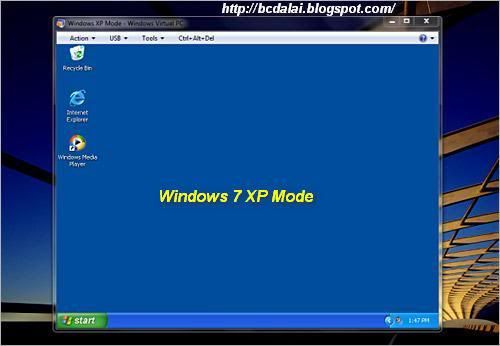
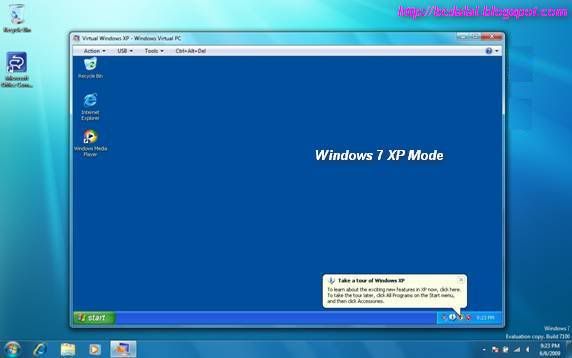
 Windows 7 XP Mode

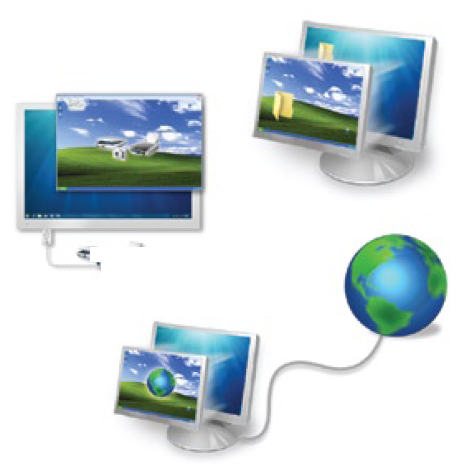
When it revealed that it was going to deliver a free and activated copy of Windows XP Service Pack 3 (SP3) for select editions of Windows 7, Microsoft also indicated that the virtualized version of the operating system releases in 2001 comes with a few shortcomings. Windows XP Mode in Windows 7 cannot be used in gaming scenarios, for example. This week, the Redmond company described further limitations for the free but virtualized copy of XP delivered to customers running the Professional, Enterprise and Ultimate SKUs.


It appears that Windows Media Player functionality is limited in Windows 7 XP Mode. In fact, according to the software giant, users will not be able to leverage the Windows Media Player inside Windows 7 XP Mode in the same manner as they do on Windows 7.
“When you maximize or minimize the Windows Media Player window while playing contents on Windows 7 running Windows XP Mode, you may receive an "unexpected network error occurred" error message, which causes Windows Media Player to stop playing,” Microsoft stated.

Microsoft explained that there is no bug behind this problem, and that quite to the contrary, this was the normal, intended behavior from the get go. “This behavior is by design,” the company explained. Of course, in the context in which Windows 7 XP Mode was designed with the limitations noted above, customers that have stumbled across this issue should not expect Microsoft to fix it.

And while there won’t be an update or a hotfix enabling the full functionality of Windows Media Player inside Windows 7 XP Mode, customers won’t even be able to deploy a manual fix. “There is no workaround for it,” the software giant underlined. In this context, customers taking advantage of Windows 7 XP Mode should avoid running Windows Media Player, and the frustration that will come with not being able to take advantage of basic functionality such as minimize and maximize.


References:
Update for Windows 7 (KB977206)
Update for Windows 7 for x64-based Systems (KB977206)
Windows XP Mode RTM and Windows Virtual PC RTM are available for download here.
Collection: bcdalai

What's your say ??? Send Reply


Tuesday, June 22, 2010

Changed Feature Names on Vista, 2008, Windows 7

Bookmark and Share

Changed Feature Names on Vista, Server 2008 and Windows 7

Posted: 22th June 2010, Updated: 27th Apr 2011.

80+ new Windows feature names.

After the introduction of Windows Vista, Microsoft changed many features and components in the new edition of Windows (i.e. Vista). Some of the features, technologies, components and services are redesigned or developed. And also OS feature/component names are changed and the functionality of some items has been enhanced and moved or consolidated with other features with a new ones.

Here are the lists of features/components that are changed or modified in Windows Vista, Windows Server 2008 and in Windows 7 etc.

FORMER NAME
LATER NAME
WINDOWS 2000, XP, SERVER 2003 etc.
WINDOWS VISTA (Client OS)
Accessibility OptionsEase of Access Center
Add or Remove ProgramsPrograms and Features
Address BookWindows Contacts
Automated System Recovery (ASR)Windows Complete PC Restore
Computer BrowserNetwork Discovery Protocol (NDP)
Documents and SettingsUsers
Error ReportingWindows Error Reporting (WER)
Files and Setting Transfer WizardWindows Easy Transfer (WET)
Local Security SettingsSecurity Configuration Management
Microsoft Synchronization Tool Sync Center
My ComputerComputer
My DocumentsDocuments
My MusicMusic
My Network PlacesNetwork Places
My PicturesPictures
My Recent DocumentsRecent Documents
My VideosVideos
NetMeetingWindows Meeting Space
NTBackup (Windows Backup Utility)Backup and Restore Center
Outlook ExpressWindows Mail
Performance MonitorReliability and Performance Monitor
PrefetchSuperfetch
Regional SettingsRegion and Language
Remote AssistanceWindows Remote Assistance
Run AsRun As Administrator
Scheduled TasksTask Scheduler
Stored Use Names and PasswordsCredential Manager
System File Checker (SFC)System Integrity Check and Repair
System RestoreSystem Protection
Tour Windows XPGetting Started or Welcome Center
Windows File Protection (WFP)Windows Resource Protection (WRP)
Windows MessengerWindows Live Messenger
Windows Picture and Fax ViewerWindows Photo Gallery
Windows Services for UnixSubsystem for Unix-based Applications
Windows Vista
Windows 7
Backup and Restore CenterBackup and Restore
Network PlacesNetworks
Pen and Input DevicesPen and Touch
PrintersDevices And Printers
Problem Reports and SolutionsAction Center
Regional and Language OptionsRegion and Language
Welcome CenterGetting Started
Windows MarketplaceGet Programs (Online)
Windows Photo GalleryWindows Photo Viewer
Windows Security CenterAction Center
Windows SidebarDesktop Gadgets
WINDOWS SERVER 2008 (Server OS)
Computer ManagementServer Manager
Error ReportingProblem Reports and Solutions
NTBackup (Windows Backup Utility)Windows Server Backup
Windows FirewallWindows Firewall with Advanced Security
OTHER TECHNOLOGY / FEATURE
Data Protection ServerSystem Center Data Protection Manager (DPM)
MDAC (Microsoft Data Access Components)Windows DAC
Microsoft Business SolutionsMicrosoft Dynamics products
Microsoft InstallerWindows Installer
Microsoft Internet Explorer (till IE6)Windows Internet Explorer (IE7 onwards)
Microsoft Office GrooveMicrosoft SharePoint Workspace
Microsoft Office OutlookMicrosoft Outlook
Microsoft Operations Manager (MOM)System Center Operations Manager (SCOM)
Microsoft Shared Computer ToolkitWindows SteadyState
Microsoft Virtual PCWindows Virtual PC
Remote Installation Services (RIS)Windows Deployment Services (WDS)
System File ProtectionWindows File Protection
Systems Management Server (SMS)System Center Configuration Manager
Windows Genuine Advantage (WGA)Windows Activation Technology (WAT)
Windows Photo GalleryWindows Live Photo Gallery
Windows Scripting HostWindows Script Host

Get this article in a Downloadable file: See the end of these file of table-16 in APPENDIX section to find this table of lists.

Download PDF here:

http://1drv.ms/1mDyZC9

Download XPS here:

http://1drv.ms/1mDz3BO

------------------------------------------------------------
Posted by: bcdalai

Useful Keyboard Shortcuts in Windows 7

Bookmark and Share

Useful Keyboard Shortcuts for Windows 7


Posted: 22th June 2010, Updated: 14th Aug 2010.

Windows 7 includes many handy keyboard shortcut key combinations that allow you to navigate and manage the Windows workspace more efficiently. Here are few  shortcuts for Microsoft Windows 7 that will help you speed up your works:

Note: (“Win” means the Windows Key).


Ctrl+click: Pressing Ctrl while clicking a taskbar icon will scroll through multiple windows of that icon's application.
Ctrl+S: Saves a file for application in Windows.
Win+(numbers 1 to 5): Starts the program pinned to the taskbar in the position indicated by the number. If the program is already running, it switches to that program.
Win+Alt+(numbers 1 to 5): Opens the Jump List of recently accessed items for the program pinned to the taskbar in the position indicated by the number.
Win+Ctrl+(numbers 1 to 5): Switches to the last active window of the program pinned to the taskbar in the position indicated by the number.
Win+Ctrl+B: Switches to the program that displayed a message in the notification area.
Win+Ctrl+F: Opens a Search window for finding computers on a network.
Win+Ctrl+Tab and then Left or Right Arrow: Opens Aero Flip 3-D to cycle through open programs.
Win+D: Shows the desktop.
Win+Down Arrow: Minimizes the window.
Win+E: Opens Windows Explorer with Computer selected.
Win+F: Opens a Search window for finding files or folders.
Win+G: Cycles through Gadgets (if available).
Win+Home: Minimizes all but the active window.
Win+L: Locks your computer or switches users.
Win+Left Arrow: Docks the active window to the left half of the screen.
Win+M: Minimizes all windows.
Win+P: Chooses a presentation display mode.
Win+Pause: Displays the System Control Panel applet.
Win+R: Opens the Run dialog box.
Win+Right Arrow: Docks the active window to the right half of the screen.
Win+Shift+(numbers 1 to 5): Starts a new instance of the program pinned to the taskbar in the position indicated by the number.
Win+Shift+Left or Right Arrow: Moves the window from one monitor to another.
Win+Shift+M: Restores minimized windows.
Win+Shift+Up Arrow: Stretches the window to the top and bottom of the screen.
Win+Spacebar: Shows the desktop without minimizing open windows (Aero Peek).
Win+T: Cycles through and previews programs on the taskbar.
Win+Tab: Cycles through open programs by using Aero Flip 3-D. (If Aero is working.)
Win+U: Opens the Ease of Access Center.
Win+Up Arrow: Maximizes the window.
Win+X: Opens the Windows Mobility Center.

If you have more keyboard shortcuts then add those here.


---------------------------------------------------
Posted by: bcdalai

The content on this site is Copyright Protected by DMCA.com - Click for status and more info

Thursday, February 4, 2010

Windows 7 Resources for IT Professionals

Bookmark and Share

Windows 7 Resources for IT Professionals

Windows 7 Upgrade Advisor

Brief Description
Download and run the Windows 7 Upgrade Advisor to see if your PC is ready for Windows 7. It scans your hardware, devices, and installed programs for known compatibility issues, gives you guidance on how to resolve potential issues found, and recommends what to do before you upgrade.
Overview
Before you begin: Be sure to plug in and turn on any USB devices or other devices, such as printers,
external hard disks, and scanners, that you regularly use with the PC you're checking.
The Windows 7 Upgrade Advisor scans your PC for potential compatibility issues and lets you know about
your Windows 7 upgrade options. Within minutes, you'll get a report that tells you if your PC meets the
system requirements, if any known compatibility issues with your hardware, devices, and installed programs are found, and gives guidance on what to do to before installing Windows 7 on your PC.
Download:
-------------------------------------------------------------------------------

Windows Easy Transfer for transferring from Windows XP (32 bit) to Windows 7
Brief Description
Use Windows Easy Transfer to copy your files, photos, music, e-mail, settings, and more from a computer running Windows XP to a computer running Windows 7. You can transfer data using an Easy Transfer Cable, removable media, or across a network.
Overview
This software installs Windows Easy Transfer on a computer running the 32-bit version of Windows XP
so you can copy your files, photos, music, e-mail, settings, and more to a computer running Windows
7. If your computer is running another version of Windows, you can download other versions of Windows Easy Transfer by following this link. This software is already built into Windows 7, so it is not necessary to install it on a computer running Windows 7.
Download:
-------------------------------------------------------------------------------
BitLocker To Go Reader
Brief Description
The BitLocker To Go Reader is an application that provides users read-only access to BitLocker-protected FAT-formatted drives on computers running Windows XP or Windows Vista.
Overview
BitLocker protection on removable drives is known as BitLocker To Go. When a BitLocker-protected removable drive is unlocked on a computer running Windows 7, the drive is automatically recognized and the user is either prompted for credentials to unlock the drive or the drive is unlocked automatically if configured to do so. Computers running Windows XP or Windows Vista do not automatically recognize that the removable drive is BitLocker-protected. With the BitLocker To Go Reader users can unlock the BitLocker-protected drives by using a password or a recovery password (also known as a recovery key) and gain read-only access to their data.
System Requirements
Supported Operating Systems: Windows Vista; Windows Vista 64-bit Editions Service Pack 1; Windows Vista Business; Windows Vista Business 64-bit edition; Windows Vista Enterprise; Windows Vista Enterprise 64-bit edition; Windows Vista Home Basic; Windows Vista Home Basic 64-bit edition; Windows Vista Home Premium; Windows Vista Home Premium 64-bit edition; Windows Vista Service Pack 1; Windows Vista Service Pack 2; Windows Vista Starter; Windows Vista Ultimate; Windows Vista Ultimate 64-bit edition; Windows XP 64-bit; Windows XP Service Pack 2; Windows XP Service Pack 3.
Download:
-------------------------------------------------------------------------------
Microsoft Hardware-Assisted Virtualization Detection Tool
Brief Description
The Hardware-assisted virtualization (HAV) detection tool checks if the computer processor supports HAV and if this setting is enabled.
Overview
Windows Virtual PC requires processors capable of hardwareassisted virtualization with AMD-V™, Intel® VT or VIA® VT turned on in the BIOS. The HAV detection tool helps you check if the computer processor supports hardware virtualization. The tool also checks if this feature is enabled on the processor. For more information about Windows Virtual PC, please visit the Windows Virtual PC website.

To know whether your computer is compatible to run Windows XP Mode/Hyper-v/Windows Virtual PC or not use the following tool:
Download:
-------------------------------------------------------------------------------
Remote Server Administration Tools for Windows 7
Brief Description
Remote Server Administration Tools for Windows® 7 enables IT administrators to manage roles and features that are installed on computers that are running Windows Server® 2008 R2, Windows Server® 2008, or Windows Server® 2003, from a remote computer that is running Windows 7.
Overview
**Remote Server Administration Tools for Windows 7 can be installed ONLY on computers that are running the Enterprise, Professional, or Ultimate editions of Windows 7.**
Remote Server Administration Tools for Windows 7 enables IT administrators to manage roles and features that are installed on remote computers that are running Windows Server 2008 R2 (and, for some roles and features, Windows Server 2008 or Windows Server 2003) from a remote computer that is running Windows 7. It includes support for remote management of computers that are running either the Server Core or full installation options of Windows Server 2008 R2, and for some roles and features, Windows Server 2008. Some roles and features on Windows Server 2003 can be managed remotely by using Remote Server Administration Tools for Windows 7, although the Server Core installation option is not available with the Windows Server 2003 operating system. This feature is comparable in functionality to the Windows Server 2003 Administrative Tools Pack and Remote Server Administration Tools for Windows Vista with Service Pack 1 (SP1).
Download:
------------------------------------------------------------------------------

Microsoft Network Monitor 3.3
Brief Description
Tool to allow capturing and protocol analysis of network traffic.
Overview
Network Monitor 3.3 is a protocol analyzer. It allows you to capture network traffic, view and analyze it. Version 3.3 is an update and replaces Network Monitor 3.2. Network Monitor 3.x is a complete overhaul of the previous Network Monitor 2.x version.
System Requirements
Supported Operating Systems: Windows 7; Windows Server 2003 Service Pack 2; Windows Server 2003 Service Pack 2 x64 Edition; Windows Server 2008; Windows Server 2008 R2; Windows Server 2008 R2 for Itanium-based Systems; Windows Vista 64-bit Editions Service Pack 1; Windows Vista Service Pack 1; Windows XP 64-bit; Windows XP Service Pack 3
Download:
------------------------------------------------------------------------------

Update for Windows XP SP3 to enable RemoteApp
Brief Description
This package lets you to run many Windows XP productivity applications from a Windows 7-based PC using Windows Virtual PC
Overview
This package lets you to run many Windows XP productivity applications from a Windows 7-based PC using Windows Virtual PC. This patch needs to be installed in your Windows XP SP3 virtual machine.
For more information about Windows Virtual PC, please visit the Windows Virtual PC website.
Download:
------------------------------------------------------------------------------
Update for Windows Vista SP1 or above to enable RemoteApp
Brief Description
This package lets you to run many Windows Vista productivity applications from Windows 7-based PC using Windows Virtual PC.
Overview
This package lets you to run many Windows Vista productivity applications from Windows 7-based PC using Windows Virtual PC. This package needs to be installed in your Windows Vista virtual machine.
For more information about Windows Virtual PC, please visit the Windows Virtual PC website.
Download:
------------------------------------------------------------------------------
HYPER-V and RED HAT (Linux) support
Here are the details:
Red Hat Enterprise Linux 5.2, 5.3, 5.4 have passed cert tests when running on Windows Server 2008 Hyper-V, Microsoft Hyper-V Server 2008, Windows Server 2008 R2 Hyper-V, Microsoft Hyper-V Server 2008 R2. See more at RedHat's certified hardware site.

Windows Server 2003/ Windows Server 2008 / Windows Server 2008 R2 are validated to run on Red Hat Enterprise Linux 5.4, using their KVM-based hypervisor. See more at Microsoft Server Virtualization Validation Program site.

System Center Operations Manager 2007 R2 supports monitoring of the following operating systems:
HP-UX 11i v2 and v3 (PA-RISC and IA64)
Sun Solaris 8 and 9 (SPARC) and Solaris 10 (SPARC and x86)
Red Hat Enterprise Linux 4 (x86/x64) and 5 (x86/x64) Server
Novell SUSE Linux Enterprise Server 9 (x86) and 10 SP1 (x86/x64)
IBM AIX v5.3 and v6.1 (POWER)

Read:
------------------------------------------------------------------------------
Microsoft Press and TechNet Magazine have teamed up to create a free e-book:
Deploying Windows 7, Essential Guidance from the Windows 7 Resource Kit and TechNet Magazine. The e-book includes ten complete chapters from Microsoft Press’s Windows 7 Resource Kit (ISBN: 9780735627000; ISBN: 1760 pages), by Mitch
Tulloch, Tony Northrup, Jerry Honeycutt, Ed. Wilson, and the Windows 7 Team at Microsoft.
Download:
-------------------------------------------------------------------------------

Building a Standard Image of Windows 7 Step-by-Step Guide
Brief Description
Explains how to install a custom image by using an operating system image that includes your
customizations and applications.
Download:
-------------------------------------------------------------------------------
Configuring Windows 7 for a Limited User Account
Brief Description
Explains how to set up your Administrator accounts through User Account Control.
Download:
-------------------------------------------------------------------------------
Download your free e-book of Introducing Windows Server 2008 R2
Introducing Windows Server 2008 R2 e-book.
Download:
-------------------------------------------------------------------------------
77 Windows 7 Tips
Read:
-------------------------------------------------------------------------------

What’s New in Group Policy for Windows 7 and Windows Server
2008 R2
Read:
-------------------------------------------------------------------------------
UAC tweaks in Windows 7
Read:
Article from: Windows 7 blog:
-------------------------------------------------------------------------------
Your Windows 7 Deployment Guide
Read:
-------------------------------------------------------------------------------
Windows 7 Remote Desktop Connection 7.0 for XP SP3 and Vista SP1 and SP2
“The Remote Desktop Connection 7.0 client update enables you to use the new Remote Desktop Services features. These features are introduced in Windows 7 and in Windows Server 2008 R2 and are available for computers that are running Windows Vista Service Pack 1 or Windows Vista Service Pack 2. After you install this item, you may have to restart your computer”.
Download:
-------------------------------------------------------------------------------
Fully install Windows 7 from the upgrade disc
Read the full article here:
The pros and cons of switching to Windows 7:
Read:
Making the business case for Windows 7
Create a Windows XP and 7 dual-boot systemstaged for an easy migration
What Windows 7 means to Windows server administrators:
Windows Server 2008 R2 Foundation gives small networks more options
Windows 7 Professional feature-to-feature comparison chart
Delayed Start feature increases options for Windows services
Determine processes running on a remote server with PsList
-------------------------------------------------------------------------------

Engineering Windows 7
Read everything on Windows 7 on E7 blog
Visit:
-------------------------------------------------------------------------------
Windows 7 Upgrade Paths
Read:
-------------------------------------------------------------------------------
Cloud Infrastructure
Read this article for more about Cloud Computing infrastructures:

Challenges of Virtual Infrastructure Deployment and Management
Read this article:

10+ ways Windows 7 will affect IT pros
Read:

Installing Windows 7 on an existing Windows XP Computer
To install Windows 7 and migrate existing user files and settings. Read the complete article:
------------------------------------------------------------------------------
Yet another awesome tool from the Sysinternals team, Disk2vhd. As the name implies this tool can covert a physical disk into a virtual disk. Here is the quick summary of it’s capabilities. The converted VHD file can be used to boot from Virtual PC, Hyper-V and another physical machine as well Works on a machine that’s online VHD can be created on the same volume that is getting converted Preserves the partition information of the disk
Cool utility to create your physical dosk drive to a VHD file.
Download this tool from:
------------------------------------------------------------------------------
Windows Vista: Windows update went bad, now my PC is stuck in endless updating cycle
This is the place for all problem reports / Troubleshooting methods and more informations on Tech. Support. Read a recent post relating to a Windows Update issue on Windows Vista, from forum of CNET.com:
Read this and try to sort out the solutions here......
------------------------------------------------------------------------------
Fix Windows 7 Activation Status Not Available or SLMgr 0×80070422 Error
Windows 7 displays the system activation status in System Properties, which can be accessed via Control Panel -> System and Security -> System. However, sometimes, Windows activation may display error message which saying activation status not available, together with product ID which is also not available.

Read this page for detail:
And also read:
Related articles:


-----------------------------------

Posted by: bcdalai