Message Board

What's your say ??? Send Message Here.
--------------------------------------------------------------

Friday, July 30, 2010

Windows 7 XP Mode Limits Media Player Functionality

Bookmark and Share

Windows 7 XP Mode Limits Windows Media Player Functionality

Article Source: news.softpedia.com. By Marius Oiaga, Technology News Editor, @MariusOiaga
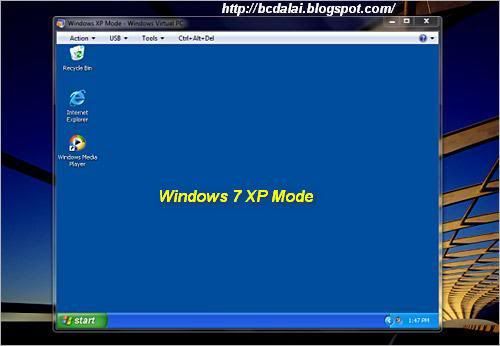
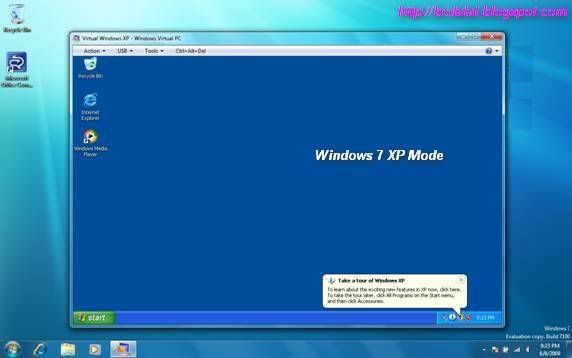
 Windows 7 XP Mode

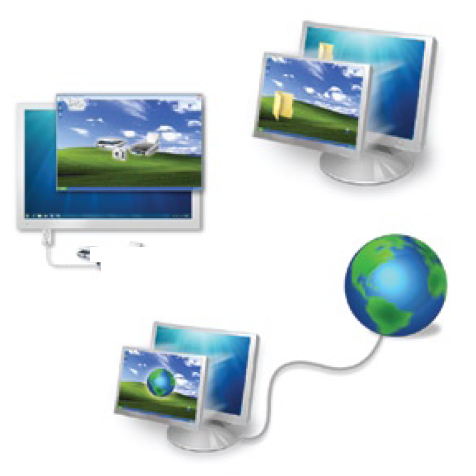
When it revealed that it was going to deliver a free and activated copy of Windows XP Service Pack 3 (SP3) for select editions of Windows 7, Microsoft also indicated that the virtualized version of the operating system releases in 2001 comes with a few shortcomings. Windows XP Mode in Windows 7 cannot be used in gaming scenarios, for example. This week, the Redmond company described further limitations for the free but virtualized copy of XP delivered to customers running the Professional, Enterprise and Ultimate SKUs.


It appears that Windows Media Player functionality is limited in Windows 7 XP Mode. In fact, according to the software giant, users will not be able to leverage the Windows Media Player inside Windows 7 XP Mode in the same manner as they do on Windows 7.
“When you maximize or minimize the Windows Media Player window while playing contents on Windows 7 running Windows XP Mode, you may receive an "unexpected network error occurred" error message, which causes Windows Media Player to stop playing,” Microsoft stated.

Microsoft explained that there is no bug behind this problem, and that quite to the contrary, this was the normal, intended behavior from the get go. “This behavior is by design,” the company explained. Of course, in the context in which Windows 7 XP Mode was designed with the limitations noted above, customers that have stumbled across this issue should not expect Microsoft to fix it.

And while there won’t be an update or a hotfix enabling the full functionality of Windows Media Player inside Windows 7 XP Mode, customers won’t even be able to deploy a manual fix. “There is no workaround for it,” the software giant underlined. In this context, customers taking advantage of Windows 7 XP Mode should avoid running Windows Media Player, and the frustration that will come with not being able to take advantage of basic functionality such as minimize and maximize.


References:
Update for Windows 7 (KB977206)
Update for Windows 7 for x64-based Systems (KB977206)
Windows XP Mode RTM and Windows Virtual PC RTM are available for download here.
Collection: bcdalai

What's your say ??? Send Reply


Thursday, July 8, 2010

IT Career - Microsoft ICT Curriculum Roadmap

Bookmark and Share

Microsoft ICT Curriculum Roadmap


ICT Roadmap


Welcome to the Microsoft information and communications technology (ICT) curriculum roadmap. This roadmap guides you through Microsoft Learning products toward a career in computer technology. Whether you are new to computing or have some experience, this roadmap helps you understand the skills and knowledge requirements necessary to begin or resume your career in ICT.


Select a job role to view the ICT curriculum roadmap
If you have experience in computing, the roadmap helps you identify the learning path in preparing for the ICT career of your choice. Determine your starting point by reviewing the prerequisites necessary for each knowledge point in the curriculum. Then use the roadmap's resources to test your readiness, using assessment exams or a self-assess option to check your skills against the skills measured. If you need more training, choose training resources that suit your learning style: classroom courses, e-learning, or independent study.
Charting your progress is easy as you use the roadmap to guide you through the curriculum. An important step along the way is to validate your knowledge and skills by becoming a Microsoft Certified Professional. By having this credential, you let employers know that you are qualified. Whether your goal is to be a systems engineer or to improve your personal productivity when using Microsoft Office programs, the Microsoft ICT curriculum roadmap is your one-stop tool.
Note to educators The Microsoft ICT curriculum roadmap is a useful tool in mapping the technology components of your programs to the knowledge and skills of ICT jobs in the marketplace. Augmenting your programs with the employability skills that emphasize teamwork, communication, critical thinking, and problem solving throughout your curriculum is crucial in developing an employable ICT workforce.
Let us know what you think. Send feedback about the ICT curriculum roadmap to Faculty Outreach at facout@microsoft.com. 
----------------------------------------
See the full-sized roadmap


----------------------------------------
 Article source: Microsoft
--------------------------------
Ads:

Friday, July 2, 2010

List your favorite softwares and tools here

Bookmark and Share
What's your say ???
List your favorite softwares and tools here

Tell me about your favorite softwares and tools

Hello Bloggers and Compter users, Here I'm asking you all about the favorite software and tools you like in for your PC / Laptop / Server.

Tell me in this article through the comment form or by email: [bcdalai2020[at]gmail[dot]com]


Whatever the program may be anything like (example):

Operating Systems, Anti-Spyware, Anti-Virus/Firewall, System Tools, Cleaner Tools, Drivers, Internet Tools, Firewalls, Graphics & Design, MultiMedia, Desktop, CD/DVD Tools, Office/Business, File Tools, Programming, PDF, PHOTO Tools, VIDEO Tools, MP3 & AUDIO, Convertes, Backup/Recovery, Utilities Tools, Networking, And Other Tools. 


Tell me about your favorite softwares and tools

Special Notes:
Based on your feedback - When you are telling your likes and dislikes, then I'll review that particular apps on this blog. If any problem or issue discovered then, I'll analyze and troubleshoot here.


So come on and talk to me.


So, What's your say ???


--------------------------
Kindle Wireless Reading Device, Free 3G, 6" Display, White, 3G Works Globally - Latest Generation

Friday, June 25, 2010

How to delete Gmail account

Bookmark and Share

How to delete Gmail account

Introduction: Gmail is a free, advertising-supported webmail, POP3, and IMAP service provided by Google. Gmail was launched as an invitation-only beta release on April 1, 2004 and it became available to the general public on February 7, 2007, though still in beta status at that time. As of December 2009 it has 176 million users monthly. The service was upgraded from beta status on July 7, 2009.

With an initial storage capacity offer of 1 GB per user, Gmail significantly increased the webmail standard for free storage from the 2 to 4 MB its competitors offered at that time. Gmail has a search-oriented interface and a "conversation view" similar to an Internet forum.

Features on Free version

1 - Storage: Gmail's log-in page (July 2009) The Gmail service currently provides more than 7450 MB of free storage.

2 - Gmail Labs: The Gmail Labs feature, introduced on June 5, 2008, allows users to test new or experimental features of Gmail, such as bookmarking of important e-mail messages, custom keyboard-shortcuts and games and many more.

3 - Spam filter: Gmail's spam filtering features a community-driven system: when any user marks an email as spam, this provides information to help the system identify similar future messages for all Gmail users. Users may tune the system to allow mail marked as spam to be handled in particular ways.

4 - Gmail Mobile: Gmail Mobile is a version of Google's Gmail email service. It is a free service, developed to provide access to Gmail from mobile devices such as cell phones, or smartphones.

5 - Gmail on iPad: On April 3, 2010, Google announced a new two-pane layout designed specifically for the iPad.

6 - Google Buzz: On February 9, 2010, Google commenced their new service, Google Buzz, which integrates with Gmail allowing users to share links and media, as well as status updates. Gmail allowing users to share links and media, as well as status updates.

Information courtesy: Wikipedia

Deleting Gmail account

Gmail email id is automatically deactivated and deleted if you will not use the account more than 9 months or 270 days.

But if you want to delete the account manually then you can do so.

Steps in deleting Gmail account:

1- Log on to http://mail.google.com/, then go to settings. (see Screenshot –1)

2- Click the link “Google Account Settings”. (see Screenshot –2)

OR

3- Directly logon to: https://www.google.com/accounts/ManageAccount?service=mail&hl=en

4- Then click Edit right to My Product section (see Screenshot –3).

5- Next Click “Close account and delete all services and info associated with it” link below Delete Account. (see Screenshot –4)

6- Next follow the steps on screen. (see Screenshot –5) Provide the password again.

7- Then click the button “Delete Google Account.”

8- And now the account is deleted. (see Screenshot -6)

9- Finish.

Screenshots:

click to enlarge image

Screenshot -1

click to enlarge image

Screenshot -2

click to enlarge image

Screenshot -3

click to enlarge image

Screenshot -4

click to enlarge image

Screenshot -5

click to enlarge image

Screenshot –4

Finish. Now the your account is deleted.

How to delete Yahoo! Mail account

Bookmark and Share

How to delete Yahoo! Mail account

Introduction: Yahoo! Mail (shortened to Y! Mail) is a free web mail service provided by Yahoo!. It was inaugurated in 1997. It is currently the largest web-based email service.
Currently, Yahoo! offers two versions of Yahoo! Mail: an Outlook-like Ajax interface, as well as the traditional full-page-scroll "Yahoo! Mail Classic," which continues the availability of the simpler. In early 2008, Yahoo! started offering unlimited mail storage even to its users, in response to heated competition in the free-web mail market segment.

Features on Free version:
- Unlimited Mail Storage.
- 25 MB attachments
- 100 filters to automatically sort incoming messages (200 filters for the Plus version)
Protection against spam and viruses.
- Advertising is displayed on the screen while working with the e-mail account, but text ads are not within the emails themselves, and they are no longer added to the footer of outgoing messages.
- POP3 support, Mail Forwarding facility, and SMTP support in some countries (but not in the US).
- Accounts not logged into for four months get deactivated (The account can be retrieved but all stored data, such as emails, are lost).
- Early in 2006, Yahoo! Mail introduced aliases to its repertoire of features. Users could now add a (single) alias username containing a dot character for a pre-existing account.
- The Chinese version of Yahoo! Mail offers 3.5 GB quota and 20 MB attachments.
- Some users get features added if they are long time users.
- Latest beta of Yahoo! Zimbra desktop allows for all Yahoo! users to use the software.

Information courtesy: Wikipedia

Delete A Yahoo account

Yahoo email id is automatically deactivated and deleted if you will not use the account more than 4 months or 120 days. But if you want to delete the account manually then you can do so.

Steps in deleting Yahoo account:

1- Log on to this page: https://edit.yahoo.com/config/delete_user

2- This is the link for deleting yahoo address permanently. Provide the user name and password. Your account will be deleted within 90 days.

3- Then follow the steps on screen.

4- Provide the password again and the code in the image.

5- Then click the button “Terminate this Account.”

6- Finish.

Note: Yahoo Rules mention this point: In most cases your account will be deactivated and then deleted from our user registration database in approximately 90 days. This delay is necessary to discourage users from engaging in fraudulent activity. Additionally, due to the limited number of names available, we may allow other users to sign up for and use your current Yahoo! ID and profile names after your account has been deleted.'

Screenshots:

 click to enlarge image

Image-1: ( part 1 of part 2)

click to enlarge image

Image-1: ( part 2 of part 2)

 click to enlarge image

Image–2 (Final)

Now Your Yahoo account is deleted.

Finish.