Message Board

What's your say ??? Send Message Here.
--------------------------------------------------------------
Showing posts with label Microsoft. Show all posts

Tuesday, May 14, 2013

Why Windows Kernel Slower is Than Other OS – Anonymous Microsoft Dev Says

Bookmark and Share

Why Windows Kernel Slower is Than Other OS – An Anonymous Microsoft Dev Says

Hello Friends,

Do you ask a common questions all the time that Why Windows is slow ? or Why my PC is slowing down after some days even if there is very minimum apps or file in my PC ? This is the regular case whether you use Laptop, Desktop or High end / High configuration Computer.

Yes this is the common question, that everyone asks on computing. As a IT Pro We face this question daily, and a major headache and challenge in the profession. But there is no specific answers from any IT Pro or from Microsoft. The answer may be many or may be one ? But what is the real/true reason behind it is still unknown and to be found out. There are many discussions on the internet and on offline. Few days ago there was a long discussion on CNET (Why do all Window systems slow down over time?). But have may reasons at last.

The Design and Development of the Windows OS is questionable many a times, in this scenario. Comparing to other OS, it is true that Windows is Slower than other (Linux, Mac etc.) in many cases.

Here is the recent post by an anonymous Microsoft developer, describing the causes of the issue from the development point of view.

The post was 1st published on (Microsoft dev explained in a comment) Hacker News, (then deleted, and reposted on Zorinaq.com). Just read through it to know more, why Windows “is indeed slower than other operating systems in many scenarios, and the gap is worsening”.

SlowerWindows

--------------------Read the Full post below-------------------------------

"I Contribute to the Windows Kernel. We Are Slower Than Other Operating Systems. Here Is Why."

I was explaining on Hacker News why Windows fell behind Linux in terms of operating system kernel performance and innovation. And out of nowhere an anonymous Microsoft developer who contributes to the Windows NT kernel wrote a fantastic and honest response acknowledging this problem and explaining its cause. His post has been deleted! Why the censorship? I am reposting it here. This is too insightful to be lost. [Edit: The anonymous poster himself deleted his post as he thought it was too cruel and did not help make his point, which is about the social dynamics of spontaneous contribution. However he let me know he does not mind the repost at the condition I redact the SHA1 hash info, which I did.] [Edit: A second statement, apologetic, has been made by the anonymous person. See update at the bottom.]

"""

I'm a developer in Windows and contribute to the NT kernel. (Proof: the SHA1 hash of revision #102 of [Edit: filename redacted] is [Edit: hash redacted].) I'm posting through Tor for obvious reasons.

Windows is indeed slower than other operating systems in many scenarios, and the gap is worsening. The cause of the problem is social. There's almost none of the improvement for its own sake, for the sake of glory, that you see in the Linux world.

Granted, occasionally one sees naive people try to make things better. These people almost always fail. We can and do improve performance for specific scenarios that people with the ability to allocate resources believe impact business goals, but this work is Sisyphean. There's no formal or informal program of systemic performance improvement. We started caring about security because pre-SP3 Windows XP was an existential threat to the business. Our low performance is not an existential threat to the business.

See, component owners are generally openly hostile to outside patches: if you're a dev, accepting an outside patch makes your lead angry (due to the need to maintain this patch and to justify in in shiproom the unplanned design change), makes test angry (because test is on the hook for making sure the change doesn't break anything, and you just made work for them), and PM is angry (due to the schedule implications of code churn). There's just no incentive to accept changes from outside your own team. You can always find a reason to say "no", and you have very little incentive to say "yes".

There's also little incentive to create changes in the first place. On linux-kernel, if you improve the performance of directory traversal by a consistent 5%, you're praised and thanked. Here, if you do that and you're not on the object manager team, then even if you do get your code past the Ob owners and into the tree, your own management doesn't care. Yes, making a massive improvement will get you noticed by senior people and could be a boon for your career, but the improvement has to be very large to attract that kind of attention. Incremental improvements just annoy people and are, at best, neutral for your career. If you're unlucky and you tell your lead about how you improved performance of some other component on the system, he'll just ask you whether you can accelerate your bug glide.

Is it any wonder that people stop trying to do unplanned work after a little while?

Another reason for the quality gap is that that we've been having trouble keeping talented people. Google and other large Seattle-area companies keep poaching our best, most experienced developers, and we hire youths straight from college to replace them. You find SDEs and SDE IIs maintaining hugely import systems. These developers mean well and are usually adequately intelligent, but they don't understand why certain decisions were made, don't have a thorough understanding of the intricate details of how their systems work, and most importantly, don't want to change anything that already works.

These junior developers also have a tendency to make improvements to the system by implementing brand-new features instead of improving old ones. Look at recent Microsoft releases: we don't fix old features, but accrete new ones. New features help much more at review time than improvements to old ones.

(That's literally the explanation for PowerShell. Many of us wanted to improve cmd.exe, but couldn't.)

More examples:

  • We can't touch named pipes. Let's add %INTERNAL_NOTIFICATION_SYSTEM%! And let's make it inconsistent with virtually every other named NT primitive.
  • We can't expose %INTERNAL_NOTIFICATION_SYSTEM% to the rest of the world because we don't want to fill out paperwork and we're not losing sales because we only have 1990s-era Win32 APIs available publicly.
  • We can't touch DCOM. So we create another %C#_REMOTING_FLAVOR_OF_THE_WEEK%!
  • XNA. Need I say more?
  • Why would anyone need an archive format that supports files larger than 2GB?
  • Let's support symbolic links, but make sure that nobody can use them so we don't get blamed for security vulnerabilities (Great! Now we get to look sage and responsible!)
  • We can't touch Source Depot, so let's hack together SDX!
  • We can't touch SDX, so let's pretend for four releases that we're moving to TFS while not actually changing anything!
  • Oh god, the NTFS code is a purple opium-fueled Victorian horror novel that uses global recursive locks and SEH for flow control. Let's write ReFs instead. (And hey, let's start by copying and pasting the NTFS source code and removing half the features! Then let's add checksums, because checksums are cool, right, and now with checksums we're just as good as ZFS? Right? And who needs quotas anyway?)
  • We just can't be fucked to implement C11 support, and variadic templates were just too hard to implement in a year. (But ohmygosh we turned "^" into a reference-counted pointer operator. Oh, and what's a reference cycle?)

Look: Microsoft still has some old-fashioned hardcore talented developers who can code circles around brogrammers down in the valley. These people have a keen appreciation of the complexities of operating system development and an eye for good, clean design. The NT kernel is still much better than Linux in some ways --- you guys be trippin' with your overcommit-by-default MM nonsense --- but our good people keep retiring or moving to other large technology companies, and there are few new people achieving the level of technical virtuosity needed to replace the people who leave. We fill headcount with nine-to-five-with-kids types, desperate-to-please H1Bs, and Google rejects. We occasionally get good people anyway, as if by mistake, but not enough. Is it any wonder we're falling behind? The rot has already set in.

"""

Edit: This anonymous poster contacted me, still anonymously, to make a second statement, worried by the attention his words are getting:

"""

All this has gotten out of control. I was much too harsh, and I didn't intend this as some kind of massive exposé. This is just grumbling. I didn't appreciate the appetite people outside Microsoft have for Kremlinology. I should have thought through my post much more thoroughly. I want to apologize for presenting a misleading impression of what it's like on the inside.

First, I want to clarify that much of what I wrote is tongue-in-cheek and over the top --- NTFS does use SEH internally, but the filesystem is very solid and well tested. The people who maintain it are some of the most talented and experienced I know. (Granted, I think they maintain ugly code, but ugly code can back good, reliable components, and ugliness is inherently subjective.) The same goes for our other core components. Yes, there are some components that I feel could benefit from more experienced maintenance, but we're not talking about letting monkeys run the place. (Besides: you guys have systemd, which if I'm going to treat it the same way I treated NTFS, is an all-devouring octopus monster about crawl out of the sea and eat Tokyo and spit it out as a giant binary logfile.)

In particular, I don't have special insider numbers on poaching, and what I wrote is a subjective assessment written from a very limited point of view --- I watched some very dear friends leave and I haven't been impressed with new hires, but I am *not* HR. I don't have global facts and figures. I may very well be wrong on overall personnel flow rates, and I shouldn't have made the comment I did: I stated it with far more authority than my information merits.

Windows and Microsoft still have plenty of technical talent. We do not ship code that someone doesn't maintain and understand, even if it takes a little while for new people to ramp up sometimes. While I have read and write access to the Windows source and commit to it once in a while, so do tens and tens of thousands of other people all over the world. I am nobody special. I am not Deep Throat. I'm not even Steve Yegge. I'm not the Windows equivalent of Ingo Molnar. While I personally think the default restrictions placed on symlinks limited their usefulness, there *was* a reasoned engineering analysis --- it wasn't one guy with an ulterior motive trying to avoid a bad review score. In fact, that practically never happens, at least consciously. We almost never make decisions individually, and while I maintain that social dynamics discourage risk-taking and spontaneous individual collaboration, I want to stress that we are not insane and we are not dysfunctional. The social forces I mentioned act as a drag on innovation, and I think we should do something about the aspects of our culture that I highlighted, but we're far from crippled. The negative effects are more like those incurred by mounting an unnecessary spoiler on a car than tearing out the engine block. What's indisputable fact is that our engineering division regularly runs and releases dependable, useful software that runs all over the world. No matter what you think of the Windows 8 UI, the system underneath is rock-solid, as was Windows 7, and I'm proud of having been a small part of this entire process.

I also want to apologize for what I said about devdiv. Look: I might disagree with the priorities of our compiler team, and I might be mystified by why certain C++ features took longer to implement for us than for the competition, but seriously good people work on the compiler. Of course they know what reference cycles are. We're one of the only organizations on earth that's built an impressive optimizing compiler from scratch, for crap's sake.

Last, I'm here because I've met good people and feel like I'm part of something special. I wouldn't be here if I thought Windows was an engineering nightmare. Everyone has problems, but people outside the company seem to infuse ours with special significance. I don't get that. In any case, I feel like my first post does wrong by people who are very dedicated and who work quite hard. They don't deserve the broad and ugly brush I used to paint them.

P.S. I have no problem with family people, and want to retract the offhand comment I made about them. I work with many awesome colleagues who happen to have children at home. What I really meant to say is that I don't like people who see what we do as more of a job than a passion, and it feels like we have a lot of these people these days. Maybe everyone does, though, or maybe I'm just completely wrong.

Courtesy: http://blog.zorinaq.com/?e=74

---------------------------------------------------------------------

Posted on this blog by: bcdalai

Saturday, November 10, 2012

Windows 8 keyboard shortcuts 110+

Bookmark and Share


Windows 8 keyboard shortcuts 120+

Hello Tech Friends and Windows users…

Windows 8 comes with many of keyboard shortcuts that can be used to quickly access specific tools or features. Windows 8 comes with no start menu, so you have to be more intelligent to use it efficiently.

My previous e-book Windows Command Guide contains many commands and tips for all the previous versions Windows. Here are the Keyboard commands for you. We hope you will find it useful. These commands will be added to the above e-book, on the latest version


F1: Display Help
F2: Rename a file
F3: Open Search
F4: Display the Address Bar list
F5: Refresh display
F6: Cycle forward through elements in a window or dialog box
F7: Display command history in a Command Prompt
F10: Display hidden Menu Bar
F11: Toggle full screen display
Tab: Cycle forward through elements in a window or dialog box
PrtScn: Take a screen shot of the entire screen and place it in the clipboard
Home: Move to the top of the active window
End: Move to the bottom of the active window
Delete: Delete the selected item
Backspace: Display the previous folder in Windows Explorer Move up one folder level in Open or Save dialog box
Esc
: Close a dialog box
Num Lock Enabled + Plus (+): Display the contents of the selected folder
Num Lock Enabled + Minus (-): Collapse the selected folder
Num Lock Enabled + Asterisk (*): Expand all subfolders under the selected folder
Press Shift 5 times: Turn StickyKeys on or off
Hold down right Shift for 8 seconds: Turn FilterKeys on or off
Hold down Num Lock for 5 seconds: Turn ToggleKeys on or off

Windows key: Switch between Modern Desktop Start screen and the last accessed application
Windows key + C: Access the charms bar
Windows key + Tab: Access the Modern Desktop Taskbar
Windows key + I: Access the Settings charm
Windows key + H: Access the Share charm
Windows key + K: Access the Devices charm
Windows key + Q: Access the Apps Search screen
Windows key + F: Access the Files Search screen
Windows key + W: Access the Settings Search screen
Windows key + P: Access the Second Screen bar
Windows key + Z: Brings up the App Bar when you have a Modern Desktop App running
Windows key + X: Access the Windows Tools Menu
Windows key + O
: Lock screen orientation
Windows key + . : Move the screen split to the right
Windows key + Shift + . : Move the screen split to the left
Windows key + V: View all active Toasts/Notifications
Windows key + Shift + V: View all active Toasts/Notifications in reverse order
Windows key + PrtScn: Takes a screenshot of the screen and automatically saves it in the Pictures folder as Screenshot
Windows key + Enter: Launch Narrator
Windows key + E: Open Computer
Windows key + R: Open the Run dialog box
Windows key + U: Open Ease of Access Center
Windows key + Ctrl + F: Open Find Computers dialog box
Windows key + Pause/Break: Open the System page
Windows key + 1..10: Launch a program pinned on the Taskbar in the position indicated by the number
Windows key + Shift + 1..10: Launch a new instance of a program pinned on the Taskbar in the position indicated by the number
Windows key + Ctrl + 1..10: Access the last active instance of a program pinned on the Taskbar in the position indicated by the number
Windows key + Alt + 1..10: Access the Jump List of a program pinned on the Taskbar in the position indicated by the number
Windows key + B: Select the first item in the Notification Area and then use the arrow keys to cycle through the items Press Enter to open the selected item
Windows key + Ctrl + B: Access the program that is displaying a message in the Notification Area
Windows key + T: Cycle through the items on the Taskbar
Windows key + M: Minimize all windows
Windows key + Shift + M: Restore all minimized windows
Windows key + D: Show/Hide Desktop (minimize/restore all windows)
Windows key + L: Lock computer
Windows key + Up Arrow: Maximize current window
Windows key + Down Arrow: Minimize/restore current window
Windows key + Home: Minimize all but the current window
Windows key + Left Arrow: Tile window on the left side of the screen
Windows key + Right Arrow: Tile window on the right side of the screen
Windows key + Shift + Up Arrow: Extend current window from the top to the bottom of the screen
Windows key + Shift + Left/Right Arrow: Move the current window from one monitor to the next
Windows key + F1: Launch Windows Help and Support

PageUp: Scroll forward on the Modern Desktop Start screen
PageDown: Scroll backward on the Modern Desktop Start screen
Esc
: Close a charm
Ctrl + Esc: Switch between Modern Desktop Start screen and the last accessed application
Ctrl + Mouse scroll wheel: Activate the Semantic Zoom on the Modern Desktop screen

Alt: Display a hidden Menu Bar
Alt + D: Select the Address Bar
Alt + P: Display the Preview Pane in Windows Explorer
Alt + Tab: Cycle forward through open windows
Alt + Shift + Tab: Cycle backward through open windows
Alt + F: Close the current window Open the Shut Down Windows dialog box from the Desktop
Alt + Spacebar: Access the Shortcut menu for current window
Alt + Esc: Cycle between open programs in the order that they were opened
Alt + Enter: Open the Properties dialog box of the selected item
Alt + PrtScn: Take a screen shot of the active Window and place it in the clipboard
Alt + Up Arrow: Move up one folder level in Windows Explorer (Like the Up Arrow in XP)
Alt + Left Arrow: Display the previous folder
Alt + Right Arrow: Display the next folder

Shift + Insert: CD/DVD Load CD/DVD without triggering Autoplay or Autorun
Shift + Delete: Permanently delete the item (rather than sending it to the Recycle Bin)
Shift + F6:
Cycle backward through elements in a window or dialog box
Shift + F10: Access the context menu for the selected item
Shift + Tab: Cycle backward through elements in a window or dialog box
Shift + Click: Select a consecutive group of items
Shift + Click on a Taskbar button: Launch a new instance of a program
Shift + Right-click on a Taskbar button: Access the context menu for the selected item

Ctrl + A: Select all items
Ctrl + C: Copy the selected item
Ctrl + X: Cut the selected item
Ctrl + V: Paste the selected item
Ctrl + D: Delete selected item
Ctrl + Z: Undo an action
Ctrl + Y: Redo an action
Ctrl + N: Open a new window in Windows Explorer
Ctrl + W
: Close current window in Windows Explorer
Ctrl + E: Select the Search box in the upper right corner of a window
Ctrl + Shift + N: Create new folder
Ctrl + Shift + Esc: Open the Windows Task Manager
Ctrl + Alt + Tab: Use arrow keys to cycle through open windows
Ctrl + Alt + Delete: Access the Windows Security screen
Ctrl + Click: Select multiple individual items
Ctrl + Click and drag an item: Copies that item in the same folder
Ctrl + Shift + Click and drag an item: Creates a shortcut for that item in the same folder
Ctrl + Tab: Move forward through tabs
Ctrl + Shift + Tab: Move backward through tabs
Ctrl + Shift + Click on a Taskbar button: Launch a new instance of a program as an Administrator
Ctrl + Click on a grouped Taskbar button: Cycle through the instances of a program in the group
Additions:
WINDOWS TOOLS MENU ITEMS

WIN + X + A Admin Command Prompt
WIN + X + C Command Prompt
WIN + X + D Show/Hide Desktop
WIN + X + E File Explorer
WIN + X + F Programs and Features
WIN + X + G Computer Management
WIN + X + K Disk Management
WIN + X + M Device Manager
WIN + X + O Power Options
WIN + X + P Control Panel
WIN + X + R Run Command
WIN + X + S Search
WIN + X + T Task Manager
WIN + X + V Event Viewer
WIN + X + Y System


WIN = Windows Key


Have a good computing enjoy...

Please send your kind feedback.
@bcdalai2020

Friday, June 1, 2012

50 RUN Commands in Windows 7

Bookmark and Share
Applies To: Windows 7 or later. To check and find more commands info read the e-book: Windows Commands Guide 2016
APPLICATION / TOOL COMMAND
Action Center wscui.cpl
Aero Troubleshooter msdt -id aerodiagnostic
ClearType Text Tuner cttune
Connect to a Projector displayswitch
Desktop Gadget Gallery sidebar /showgadgets
Device Manager hdwwiz.cpl
Device Pairing Application devicepairingwizard
Disk Defragment dfrgui
Display Color Calibration dccw
Display: Desktop Icon Settings control desk.cpl,,0
Display: Personalization control desk.cpl,,2
Display: Screen Resolution control desk.cpl
Display: Screen Resolution control desk.cpl,,3
Display: Screen Resolution control desk.cpl,,4
Display: Screen Resolution desk.cpl
Display: Screen Saver Settings control desk.cpl,,1
Display: Windows Color and Appearance control desk.cpl,,5
Event Translator Config Tool evntwin
Hardware and Devices Troubleshooter msdt -id devicediagnostic
Math Input Panel (for Tablet PC) mip
NAP Client Configuration napclcfg.msc
Pen and Touch (for Tablet PC) tabletpc.cpl
People Near Me collab.cpl
Performance Monitor Reports perfmon /report
Power Options – Energy Report powercfg -energy
Problem Steps Recorder psr
Program Compatibility Troubleshooter msdt -id pcwdiagnostic
Reliability Monitor perfmon /rel
Resource Monitor perfmon /res
Resource Monitor resmon
Restore Files (Advanced) sdclt /foreignrestore
Scan Management scanmanagement.msc
Services For Network File System nfsmgmt.msc
Set Program Access and Computer Defaults computerdefaults
System Preparation Tool sysprep/sysprep
System Property control system
System Repair Disc (create disc) recdisc
User Account Control Settings useraccountcontrolsettings
Windows Licensing Status slmgr.vbs /dli
Windows Anytime Upgrade Results windowsanytimeupgraderesults
Windows Easy Transfer Report migwiz/postmig
Windows Firewall firewall.cpl
Windows Media Center ehome/ehshell
Windows Media Player mplayer2
Windows PowerShell powershell
Windows PowerShell (ISE) powershell_ise
Windows Virtual PC vmwindow
WMI Control Console wmimgmt.msc
XPS Viewer xpsrchvw
Miscellaneous
3D Text Screen Saver sstext3d.scr
Blank Screen Saver scrnsave.scr
Bubbles Screen Saver bubbles.scr
Mystify Screen Saver mystify.scr
Photos Screen Saver photoscreensaver.scr
Ribbons Screen Saver ribbons.scr

To check and find more commands info read the e-book: Windows Commands Guide 2016

RUN Commands in Windows Server 2008 / 2008 R2

Bookmark and Share
Applies To: Windows Server 2008, Server 2008 R2 or later. For more info read the e-book: Windows Commands Guide 2016
APPLICATION / TOOL COMMAND
Security Configuration Wizard scw
Security Configuration Wizard viewer scwviewer
Server Manager compmgmtlauncher
Share and Storage Management storagemgmt.msc
Storage Explorer storexpl.msc
Terminal Service Manager tsadmin.msc
Terminal Services Configuration tsconfig.msc
Windows Firewall with Advanced Security wf.msc
Windows Memory Diagnostic Tool mdsched
Windows Server Backup wbadmin.msc

Find more info, read the e-book: Windows Commands Guide 2016

80 Commands for Windows Vista

Bookmark and Share
APPLICATION / TOOL COMMAND
Add Hardware Wizard hdwwiz
Advanced User Accounts netplwiz
Authorization Manager azman.msc
BitLocker Notifier fvenotify
BitLocker Wizard bitlockerwizard
Color Management colorcpl
Component Services comexp.msc
Computer Management Launcher compmgmtlauncher
Connect to a Network Projector netproj
Credential Backup and Restore Wizard credwiz
Digitizer Calibration Tool tabcal
DPI Scaling (Font size and DPI) dpiscaling
Ease of Access Center (Accessibility) * sethc
Encrypting File System (EFS) rekeywiz
Fax Cover Sheet Editor fxscover
Firewall Control Panel * firewallcontrolpanel
Firewall Settings * firewallsettings
Group Policy Management Console * gpmc.msc
Hibernation: Disable powercfg /h off
Hibernation: Enable powercfg /h on
IIS Manager (IIS 6.0 only) * # inetmgr6
IIS Manager (IIS 7.0) inetmgr
Indexing Options control srchadmin.dll
Language Pack Installer lpksetup
Microsoft iSCSI Initiator iscsicpl
Microsoft Support Diagnostic Tool msdt
Offline Files control cscui.dll
People Near Me p2phost
Presentation Settings (Mobile PC) presentationsettings
Print Management Console printmanagement.msc
Printer Migration printbrmui
Problem Reports and Solutions * # wercon
Programs and Features appwiz.cpl
Security Configuration Management secpol.msc
Snipping Tool snippingtool
Sound Recorder soundrecorder
Sound Volume sndvol
Sticky Notes stikynot
Sync Center mobsync
Tablet PC Input Panel tabtip
Task Scheduler taskschd.msc
Trusted Platform Module (TPM) tpm.msc
Trusted Platform Module (TPM) tpminit
Windows Activation Client slui
Windows Backup and Restore sdclt
Windows Calendar * wincal
Windows DVD Maker dvdmaker
Windows Easy Transfer (WET) migwiz
Windows Fax and Scan wfs
Windows Features optionalfeatures
Windows Journal journal
Windows Mail * winmail
Windows Mobility Center (Mobile PC) mblctr
Windows Remote Assistance msra
Windows Sidebar # sidebar
Windows Update Application Launcher wuapp
ADDENDA
Appearance Settings control desk.cpl,appearance@appearance
Color Scheme control /name microsoft.personalization /page pagecolorization
Desktop background control /name microsoft.personalization /page pagewallpaper
Display Settings (Screen Resolution) control desk.cpl,settings@settings
Folder Options: File extension associations control /name microsoft.defaultprograms /page pagefileassoc
Folder Options: Folder searching rundll32 shell32.dll,options_rundll 2
Folder Options: General rundll32 shell32.dll,options_rundll 0
Folder Options: View rundll32 shell32.dll,options_rundll 7
Multi-monitor control desk.cpl,monitor,@monitor
Power Options: Advanced Settings page control powercfg.cpl,,3
Power Options: Create a power plan control /name microsoft.poweroptions /page pagecreatenewplan
Power Options: Edit current plan settings control /name microsoft.poweroptions /page pageplansettings
Power Options: System settings control /name microsoft.poweroptions /page pageglobalsettings
Regional and Language Options: Administrative control /name microsoft.regionalandlanguageoptions /page /p:”administrative”
Regional and Language Options: Keyboard control /name microsoft.regionalandlanguageoptions /page /p:”keyboard”
Regional and Language Options: Location control /name microsoft.regionalandlanguageoptions /page /p:”location”
Screensaver control desk.cpl,screensaver,@screensaver
Themes control desk.cpl,themes,@themes
[“Advanced System Property” with a specific tab]
TAB COMMAND
Advanced System Settings systempropertiesadvanced
Computer Performance Settings systempropertiesperformance
Computer Name systempropertiescomputername
Data Execution Prevention Settings systempropertiesdataexecutionprevention
Hardware Settings systempropertieshardware
System Protection Settings systempropertiesprotection
System Remote Settings systempropertiesremote

For more info read the e-book: Windows Command Guide 2016

180 Windows XP RUN commands

Bookmark and Share
180 run commands for you. check it and comments. Reply if you know more to it….
APPLICATION / TOOL COMMAND
Accessibility Controls access.cpl
Accessibility Wizard accwiz
Add Hardware Wizard hdwwiz.cpl
Add/Remove Programs appwiz.cpl
Administrative Tools control admintools
Automatic Updates wuaucpl.cpl
Bluetooth Transfer Wizard fsquirt
Calculator calc
Certificate Manager Console certmgr.msc
Character Map charmap
Clipboard Viewer clipbrd
Command Prompt cmd
Component Services (DCOM/COM+ settings) dcomcnfg
Computer Management Console compmgmt.msc
Control Panel control
Date and Time Properties control date/time
Date and Time Properties timedate.cpl
DDE Shares ddeshare
Device Manager Console devmgmt.msc
DirectX Diagnostic Tool dxdiag
Disk Cleanup Utility (Appendix-A2) cleanmgr
Disk Defragment Console dfrg.msc
Disk Management Console diskmgmt.msc
Display Properties control desktop
Display Properties desk.cpl
Display Properties (Appearance tab pre-selected) control color
Dr. Watson System Troubleshooting Utility (16-bit) drwatson
Dr. Watson System Troubleshooting Utility (32-bit) drwtsn32
Driver Verifier Utility verifier
DVD Placeholder Utility (playing DVD in WMP) dvdplay
Event Viewer eventvwr
Event Viewer eventvwr.msc
File Signature Verification Tool sigverif
Files and Setting Transfer Wizard migwiz
Folders Properties control folders
Fonts Folder control fonts
Fonts Folder fonts
Game Controllers joy.cpl
Game: Free Cell freecell
Game: Hearts Card Game mshearts
Game: Internet Backgammon bckgzm
Game: Internet Checkers chkrzm
Game: Internet Hearts hrtzzm
Game: Internet Reversi rvsezm
Game: Internet Spades shvlzm
Game: Minesweeper winmine
Game: Pinball pinball
Game: Solitaire sol
Game: Spider Solitaire spider
Group Policy Object Editor gpedit.msc
Help and Support Center helpctr
HyperTerminal hypertrm
Iexpress Wizard (packaging tool) iexpress
Indexing Service Console ciadv.msc
Infrared Monitor (if installed) control infrared
Internet Connection Wizard icwconn1
Internet Explorer iexplore
Internet Explorer (InPrivate Mode) (IE8 or later) iexplore –private
Internet Explorer (no Add-ons) iexplore –extoff
Internet Properties inetcpl.cpl
Internet Setup Wizard inetwiz
Keyboard Properties control keyboard
Local Security Settings Console secpol.msc
Local Users and Groups Console lusrmgr.msc
Log Off logoff
Mail client (Default) mailto:
Mail configurations (Microsoft Outlook settings) control mlcfg32.cpl
Microsoft Chat winchat
Microsoft Management Console (Appendix-A13) mmc
Microsoft Media Player (audio player) mplay32
Microsoft Movie Maker moviemk
Microsoft Narrator narrator
Microsoft Paint mspaint
Microsoft Paint pbrush
Microsoft Program Manager progman
Microsoft Synchronization Manager mobsync
Mouse Properties control mouse
Mouse Properties main.cpl
MS-DOS Editor (text editor for MS-DOS) edit
Network Access Protection (NAP) Client UI napstat
Network Connections control netconnections
Network Connections ncpa.cpl
Network Setup Wizard (also Wireless) netsetup.cpl
Notepad notepad
Novell NetWare (if installed) control netware
Object Packager packager
On-Screen Keyboard osk
Outlook Express msimn
Performance Monitor perfmon
Performance Monitor perfmon.msc
Phone and Modem Options control telephony
Phone and Modem Options telephon.cpl
Phone Dialer dialer
Power Configuration powercfg.cpl
Printers and Faxes control printers
Printers Folder printers
Private Character Editor eudcedit
Regional and Language Options control international
Regional and Language Options intl.cpl
Registry Editor regedit
Registry Editor regedt32
Remote Access Phonebook rasphone
Remote Assistance rcimlby –launchra
Remote Desktop Connection mstsc
Removable Storage Console ntmsmgr.msc
Removable Storage Operator Requests ntmsoprq.msc
Resultant Set of Policy (RSOP) rsop.msc
Scanners and Cameras sticpl.cpl
Scheduled Tasks control schedtasks
Security Center wscui.cpl
Services services.msc
Shared Folder Wizard (creating shared folder) shrpubw
Shared Folders fsmgmt.msc
Shutdown Windows (Appendix-A3) shutdown –s –t 00
Sound Recorder sndrec32
Sounds and Audio mmsys.cpl
SQL Client Configuration cliconfg
System Configuration Editor sysedit
System Configuration Utility msconfig
System Information msinfo32
System Information winmsd
System Properties sysdm.cpl
System Restore restore/rstrui
Task Manager taskmgr
Telnet Client telnet
Telnet Server Admin tlntadmn
User Accounts (Local Users and Groups) control userpasswords
User Accounts 2 (Advanced) control userpasswords2
User Accounts Management nusrmgr.cpl
Utility Manager utilman
Windows Address Book wab
Windows Address Book Import Utility wabmig
Windows Backup Utility ntbackup
Windows Diagnose winmsd
Windows Explorer explorer
Windows Firewall firewall.cpl
Windows Installer (version checking) msiexec
Windows Magnifier magnify
Windows Management Infrastructure (WMI) wmimgmt.msc
Windows Media Player (WMP) wmplayer
Windows Media Player 6.4.09 (old version) mplayer2
Windows Messenger msmsgs
Windows NetMeeting conf
Windows Picture Acquisition Wizard (needs camera) wiaacmgr
Windows Product Activation (WPA) status oobe/msoobe /a
Windows System Security Tool syskey
Windows Update Launches (online update) wupdmgr
Windows Version Information winver
Windows WordPad wordpad
Windows Write write
Windows XP Registration Wizard (online) regwiz /r
Windows XP Tour Wizard tourstart
ADDENDA
[“System Property” with a specific tab]
TAB COMMAND
General control sysdm.cpl,,0
Computer Name control sysdm.cpl,,1
Hardware control sysdm.cpl,,2
Advanced control sysdm.cpl,,3
System Restore control sysdm.cpl,,4
Automatic Updates control sysdm.cpl,,5
Remote control sysdm.cpl,,6
[“Add or Remove Programs” with a specific tab]
Change or Remove Programs: control appwiz.cpl
Change or Remove Programs: control appwiz.cpl,,0
Add new Programs (from CD-ROM/Floppy) control appwiz.cpl,,1
Add/Remove Windows Components control appwiz.cpl,,2
Set Program Access and Defaults control appwiz.cpl,,3
[“Sound and Audio Device” with a specific tab]
Volume control mmsys.cpl,,0
Sounds control mmsys.cpl,,1
Audio control mmsys.cpl,,2
Voice control mmsys.cpl,,3
Hardware control mmsys.cpl,,4
[“Desktop Property” with a specific tab]
Desktop Property: Themes control desk.cpl
Desktop Property: Desktop control desk.cpl,,0
Desktop Property: Screen Saver control desk.cpl,,1
Desktop Property: Appearance control desk.cpl,,2
Desktop Property: Settings control desk.cpl,,3
[“System File Checker” (sfc.exe) utility usage]
System File Checker (Purge File Cache) sfc /purgecache
System File Checker (Return to Default Setting) sfc /revert
System File Checker (Scan immediately) sfc /scannow
System File Checker (Scan On every boot) sfc /scanboot
System File Checker (Scan Once at next boot) sfc /scanonce
System File Checker (Set cache size to x in MB) sfc /cachesize=x

For more info read the e-book: Windows Command Guide 2016

Friday, March 11, 2011

Download Windows 7 SP1 and Server 2008 R2 SP1 RTM

Bookmark and Share

Windows 7 SP1 and Server 2008 R2 SP1 RTM

Microsoft has released Service Pack 1 (RTM) for Windows 7 and Windows Server 2008 R2 to the End user today. Below are the direct download links for a common man to download and install the service pack on their computer.

Windows 7 SP1 is having few security updates, stability updates, RemoteFX for improved 3-D graphical experience. It will also have the updates released for Windows 7 after the final release. Read this article: http://bit.ly/dQ2XfZ

Win7SP1

It contain all the hotfixes and updates  that were released for Windows 7 and Server 2008 R2 up to now.

Download links to Windows 7 / Server 2008 R2 SP1:

For 32-bit system:

Download SP1 RTM EXE (32-bit) (Approx. 540 MB)

For 64 bit system:

Download SP1 RTM EXE (64-bit) (Approx. 900 MB)

Download the full package with 32-bit and 64-bit (ISO):

Download SP1 RTM ISO (32-bit & 64-bit) (Approx. 1950 MB)


Deployment Guide for Windows Server 2008 R2 with SP1 and Windows 7 with SP1:

http://technet.microsoft.com/hi-in/library/ff817650(en-us,WS.10).aspx

Saturday, August 14, 2010

The computer screen dims after resume from Hibernation

Bookmark and Share

The computer screen dims after resume from hibernation in Windows 7


This problem is related to Hibernation on Windows 7 PC and Laptops.
Customers running the Windows 7 client have reported issues in which they are unable to resume activity after their computer goes into hibernation.

According to Microsoft in some cases, the computer screen will dim after the users log on to resume from hibernation.

This issue is related specifically to Windows 7 and may be on Windows Server 2008 R2. Source: KB982635.

Condition of the issue:
  • You have a computer that is running Windows 7.
  • You configure the power button to be used for hibernation on the computer.
  • You change the setting of the Password protection on wake up setting to the Require a password (recommended) option.
  • The computer is put into hibernation.
  • You press the power button to resume the computer from hibernation. You are prompted to enter your user account credentials.
  • The computer is put into hibernation again while you try to log on to the computer.
  • For example, the computer is put into hibernation because of low power or because the power button is pressed by mistake.
  • You press the power button to resume the computer from hibernation again.
In this situation, the computer screen dims after you log on to resume from hibernation.

Cause: This issue occurs because two threads try to fade out the monitor at the same time.

Workaround: For Windows 7 and for Windows Server 2008 R2
To work around this issue, log on and then log off the computer.

Resolution:
Hotfix download available for only for Windows 7 (x86).

Request for hotfix HERE. Or Download it here.

Friday, July 30, 2010

Windows 7 XP Mode Limits Media Player Functionality

Bookmark and Share

Windows 7 XP Mode Limits Windows Media Player Functionality

Article Source: news.softpedia.com. By Marius Oiaga, Technology News Editor, @MariusOiaga
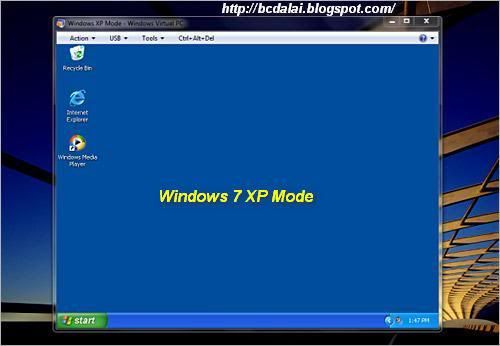
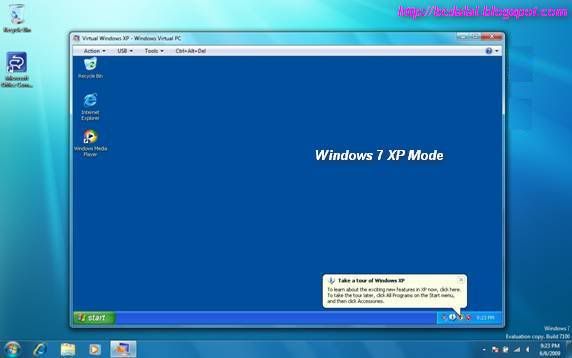
 Windows 7 XP Mode

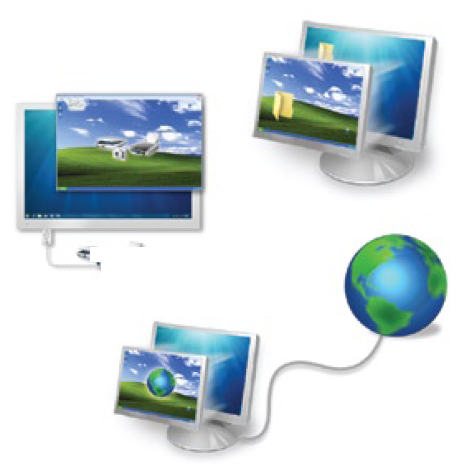
When it revealed that it was going to deliver a free and activated copy of Windows XP Service Pack 3 (SP3) for select editions of Windows 7, Microsoft also indicated that the virtualized version of the operating system releases in 2001 comes with a few shortcomings. Windows XP Mode in Windows 7 cannot be used in gaming scenarios, for example. This week, the Redmond company described further limitations for the free but virtualized copy of XP delivered to customers running the Professional, Enterprise and Ultimate SKUs.


It appears that Windows Media Player functionality is limited in Windows 7 XP Mode. In fact, according to the software giant, users will not be able to leverage the Windows Media Player inside Windows 7 XP Mode in the same manner as they do on Windows 7.
“When you maximize or minimize the Windows Media Player window while playing contents on Windows 7 running Windows XP Mode, you may receive an "unexpected network error occurred" error message, which causes Windows Media Player to stop playing,” Microsoft stated.

Microsoft explained that there is no bug behind this problem, and that quite to the contrary, this was the normal, intended behavior from the get go. “This behavior is by design,” the company explained. Of course, in the context in which Windows 7 XP Mode was designed with the limitations noted above, customers that have stumbled across this issue should not expect Microsoft to fix it.

And while there won’t be an update or a hotfix enabling the full functionality of Windows Media Player inside Windows 7 XP Mode, customers won’t even be able to deploy a manual fix. “There is no workaround for it,” the software giant underlined. In this context, customers taking advantage of Windows 7 XP Mode should avoid running Windows Media Player, and the frustration that will come with not being able to take advantage of basic functionality such as minimize and maximize.


References:
Update for Windows 7 (KB977206)
Update for Windows 7 for x64-based Systems (KB977206)
Windows XP Mode RTM and Windows Virtual PC RTM are available for download here.
Collection: bcdalai

What's your say ??? Send Reply


Thursday, July 8, 2010

IT Career - Microsoft ICT Curriculum Roadmap

Bookmark and Share

Microsoft ICT Curriculum Roadmap


ICT Roadmap


Welcome to the Microsoft information and communications technology (ICT) curriculum roadmap. This roadmap guides you through Microsoft Learning products toward a career in computer technology. Whether you are new to computing or have some experience, this roadmap helps you understand the skills and knowledge requirements necessary to begin or resume your career in ICT.


Select a job role to view the ICT curriculum roadmap
If you have experience in computing, the roadmap helps you identify the learning path in preparing for the ICT career of your choice. Determine your starting point by reviewing the prerequisites necessary for each knowledge point in the curriculum. Then use the roadmap's resources to test your readiness, using assessment exams or a self-assess option to check your skills against the skills measured. If you need more training, choose training resources that suit your learning style: classroom courses, e-learning, or independent study.
Charting your progress is easy as you use the roadmap to guide you through the curriculum. An important step along the way is to validate your knowledge and skills by becoming a Microsoft Certified Professional. By having this credential, you let employers know that you are qualified. Whether your goal is to be a systems engineer or to improve your personal productivity when using Microsoft Office programs, the Microsoft ICT curriculum roadmap is your one-stop tool.
Note to educators The Microsoft ICT curriculum roadmap is a useful tool in mapping the technology components of your programs to the knowledge and skills of ICT jobs in the marketplace. Augmenting your programs with the employability skills that emphasize teamwork, communication, critical thinking, and problem solving throughout your curriculum is crucial in developing an employable ICT workforce.
Let us know what you think. Send feedback about the ICT curriculum roadmap to Faculty Outreach at facout@microsoft.com
----------------------------------------
See the full-sized roadmap


----------------------------------------
 Article source: Microsoft
--------------------------------
Ads: